Beginner
After 3 Months with Claude Code, These 9 Best Practices Saved Me Countless Detours
After 3 Months with Claude Code, These 9 Best Practices Saved Me Countless Detours
After 3 Months with Claude Code, These 9 Best Practices Saved Me Countless Detours#
After 3 months with Claude Code, the biggest pitfall I encountered wasn't poor prompt writing or choosing the wrong model. It was something most people don't even realize: the context window.
It's like the elephant in the room. Your Claude seems to get dumber, you think it's a model issue, but actually, you've just filled up the whiteboard.
In this article, I'll share my complete experience from being a "context novice" to a "context management pro." Every point has been battle-tested.
If you're using Claude Code, this article might save you dozens of hours of wasted effort.
Alright, let's get started.
First, Understand One Thing: What Exactly is the Context Window?#
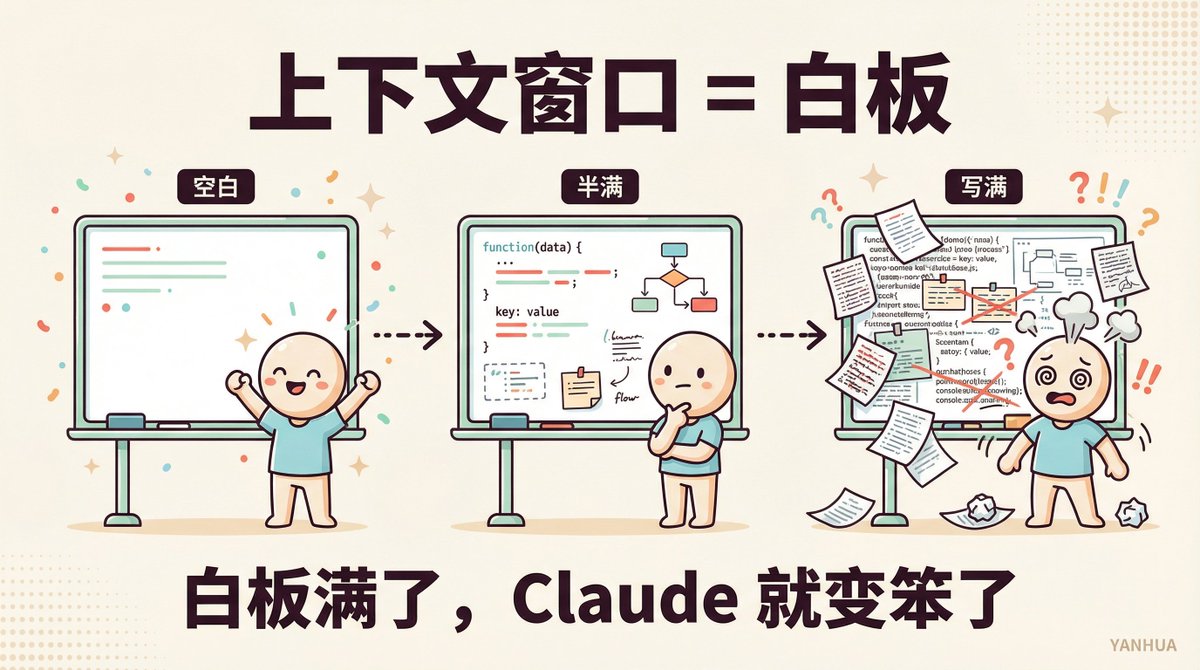
Claude's brain has a whiteboard.
Every message you send, every file Claude reads, every command it executes—it all gets written on this whiteboard.
When the whiteboard is full, Claude's performance starts to decline. It forgets instructions you gave an hour ago. It makes mistakes it shouldn't. It starts repeating itself.
That's why sometimes you feel "Claude got dumb." It didn't get dumb; it just can't remember.
Claude Code creator Boris Cherny once said:
> To use Claude Code well, the key is managing this whiteboard.
Understanding this makes all the following strategies make sense.
Strategy 1: Don't Let Claude Start Writing Code Immediately#
This is the first pitfall almost every beginner steps into.
You describe a requirement, and Claude immediately starts writing code. Fifteen minutes later, you realize it's solving a completely different problem than you wanted.
Worse, those fifteen minutes of code generation have already consumed a huge chunk of the context space.
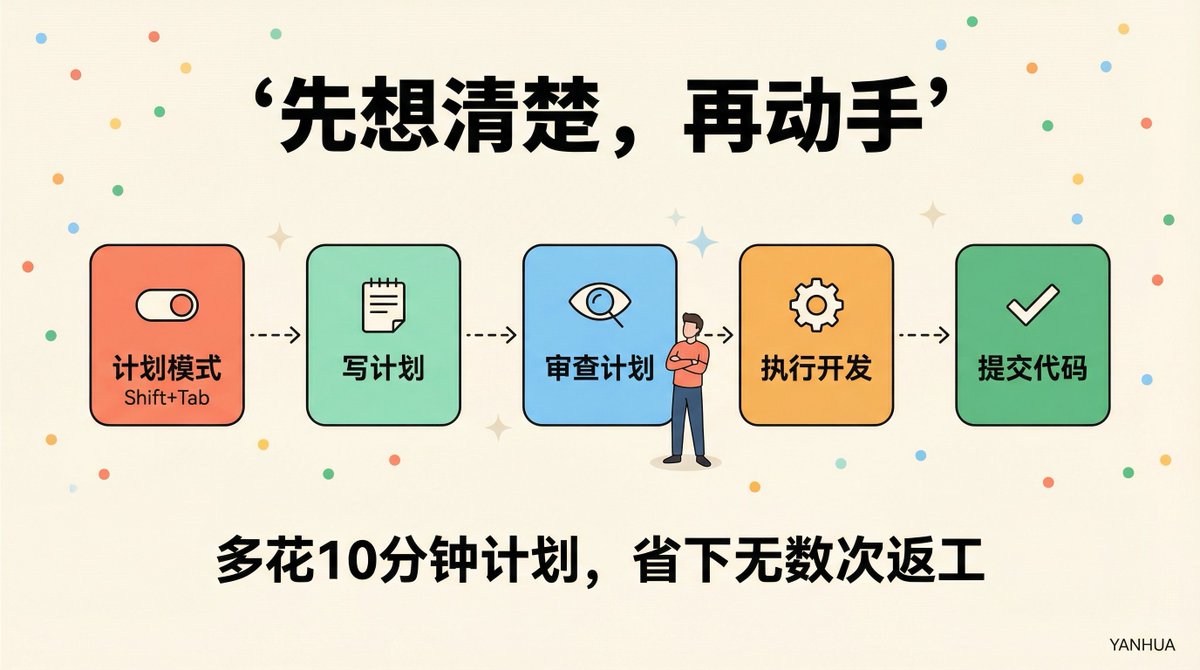
The right approach: Switch to Plan Mode first.
Claude Code has a Plan Mode, activated by pressing Shift+Tab.
In this mode, Claude only reads files and clarifies thoughts, without touching any code.
My current standard workflow is:
1️⃣ Switch to Plan Mode, let Claude read relevant files and understand connections.
2️⃣ Let Claude write a complete plan: Which files to change? Step sequence? Where might things go wrong?
3️⃣ I personally review the plan and make corrections if needed.
4️⃣ Switch back to normal mode and develop based on the plan.
5️⃣ Let Claude commit the code with clear commit messages.
Spending an extra ten minutes planning can save you countless rounds of rework.
Boris's team even has someone use one Claude to write the plan and another Claude, acting as a senior engineer, to review the plan. They take the planning step seriously.
Strategy 2: Use Subagents to Protect Your Main Battlefield#
Back to the whiteboard analogy.
When Claude investigates a problem, it reads many files. Logs, configurations, code—after reading all that, the whiteboard is half full. By the time it finishes researching and is ready to write code, there's not enough space left.
Subagents perfectly solve this problem.
A subagent is an independent Claude instance that works within its own context window. It reports results back but doesn't occupy the whiteboard space of your main session.
Usage is extremely simple: just add "use subagents" after any research task:
> "Use subagents to help me investigate how the payment flow handles failed transactions."
The subagent reads all the data, and your main session stays clean. After receiving the report, you still have plenty of space to continue development.
This is currently my most frequently used trick, bar none.
As a Java backend developer, I often need to troubleshoot complex distributed system issues. In the past, a single troubleshooting task could ruin the entire session. Now, I throw all the "read logs, check source code, analyze call chains" work to subagents, and the main session only makes decisions and writes code.
The efficiency difference is huge.

Strategy 3: CLAUDE.md is Your "Living Rulebook"#
If you use Claude Code daily but haven't seriously maintained CLAUDE.md, you're wasting a lot of efficiency.
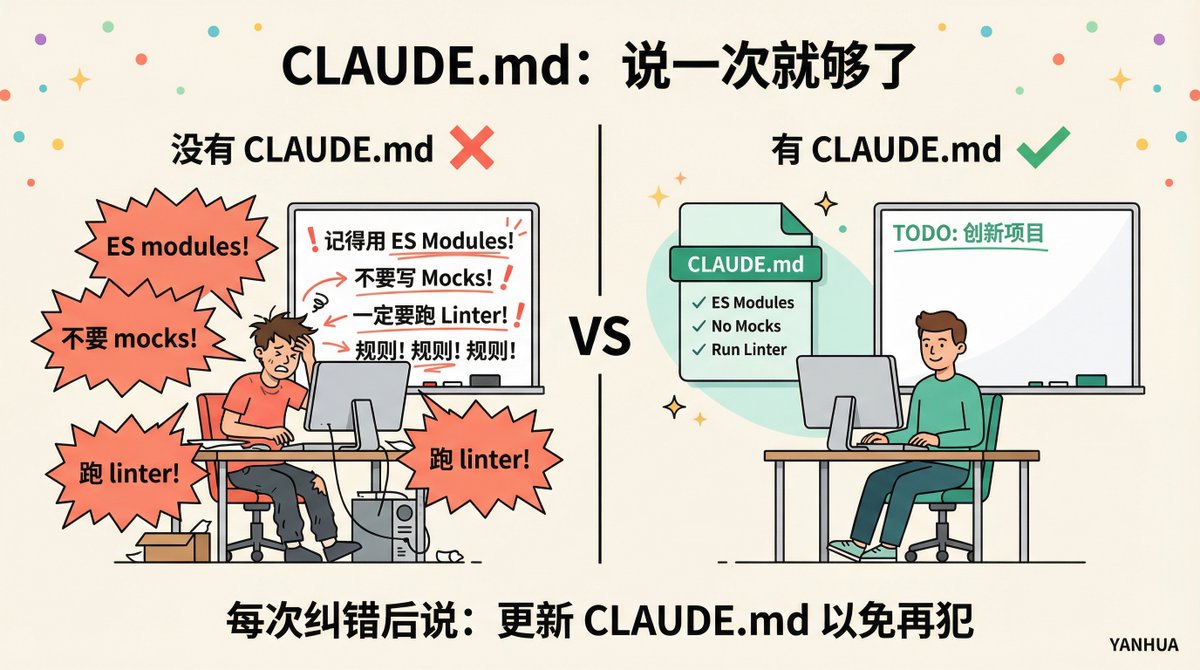
CLAUDE.md is a file Claude reads every time it starts. Whatever rules you write, Claude works with you accordingly.
Think about the things you often repeat:
- "Use ES modules, not CommonJS"
- "Don't use mocks for testing"
- "Run the linter once after code changes"
- "Branch naming format is feature/ticket-number"
Without CLAUDE.md, you have to say it every time. With CLAUDE.md, you say it once.
But the most crucial trick is this:
Every time Claude makes a mistake and you correct it, add this line at the end:
> "Update CLAUDE.md to avoid making this mistake again."
Claude will write the lesson into its own rules. Over time, CLAUDE.md becomes a "living document" optimized specifically for you.
One rule in my CLAUDE.md came about this way: I noticed Claude kept creating .txt files inside my Obsidian Vault (which Obsidian doesn't display). After correcting it once, I added a rule: "Only create .md files inside the Vault." It never made that mistake again.
⚠️ But note one thing: CLAUDE.md shouldn't be too long.
If it reaches 500 lines, Claude's attention gets scattered, and some rules get ignored. Every rule should answer a question: If this rule were gone, would Claude make a mistake? If not, delete it.
Strategy 4: Give Claude a Chance to Self-Check#
Most people's usage pattern is: Describe requirement → Pray Claude writes it correctly → Manually check line by line.
This makes you the sole quality inspector. Trust me, it's exhausting.
A better approach: Build validation criteria into the prompt.
For example. If you want to write an email validation function, don't just say "Write an email validation function."
Say it like this instead:
> "Write a function to determine if an email is valid. Test it with these cases: hello@gmail.com should pass, hello@ should fail, @domain.com should fail. After writing, execute the tests."
Now Claude can self-check; you don't have to watch every line.
It works for visual tasks too. Changing a button design? Paste a screenshot and say: "Make it look like this. After making changes, screenshot it for me and tell me what's different."
Give Claude a comparison standard to avoid being the only feedback loop. This trick can save you hours.
Strategy 5: Write Prompts Like You Write Technical Documentation#
Claude can infer many things from context, but it can't read your mind.
Look at the contrast:
❌ Vague: "Add tests for auth.py"
✅ Specific: "Write tests for auth.py covering the scenario where a user's session expires mid-request. Do not use mocks. Focus on edge cases where a token appears valid but is actually expired."
Same task, completely different results.
You can also directly point Claude to where it should look.
❌ "Why is this function acting weird?"
✅ "Look at this file's git history to find out when this behavior was added and why."
The difference is: Is Claude guessing wildly, or is it giving you a specific answer?
As a backend developer, my habit for writing prompts is now: Specify input, specify output, specify constraints, specify validation method. Treat it like writing API documentation.
Strategy 6: Reset Your Context Every 30-45 Minutes#
After chatting with Claude for a while, you'll notice it starts to drift off track.
Repeating itself. Forgetting rules you gave earlier. Answer quality noticeably drops.
This is context pollution. The whiteboard is full, and Claude can only overwrite old content.
Boris's team resets context every 30-45 minutes during complex tasks.
How to do it:
1️⃣ Let Claude summarize current progress: "Summarize what we've done so far, what tasks remain, and what current issues exist."
2️⃣ Start a new session.
3️⃣ Paste the summary and continue.
This keeps Claude's thinking clear and avoids the "brain fog" from long sessions.
Many people are reluctant to close sessions, thinking "all the context is in there." In reality, a bloated context is worse than a refined summary.
Strategy 7: Parallel Sessions + Git Worktree#
This is the productivity killer app recognized by Boris's team.
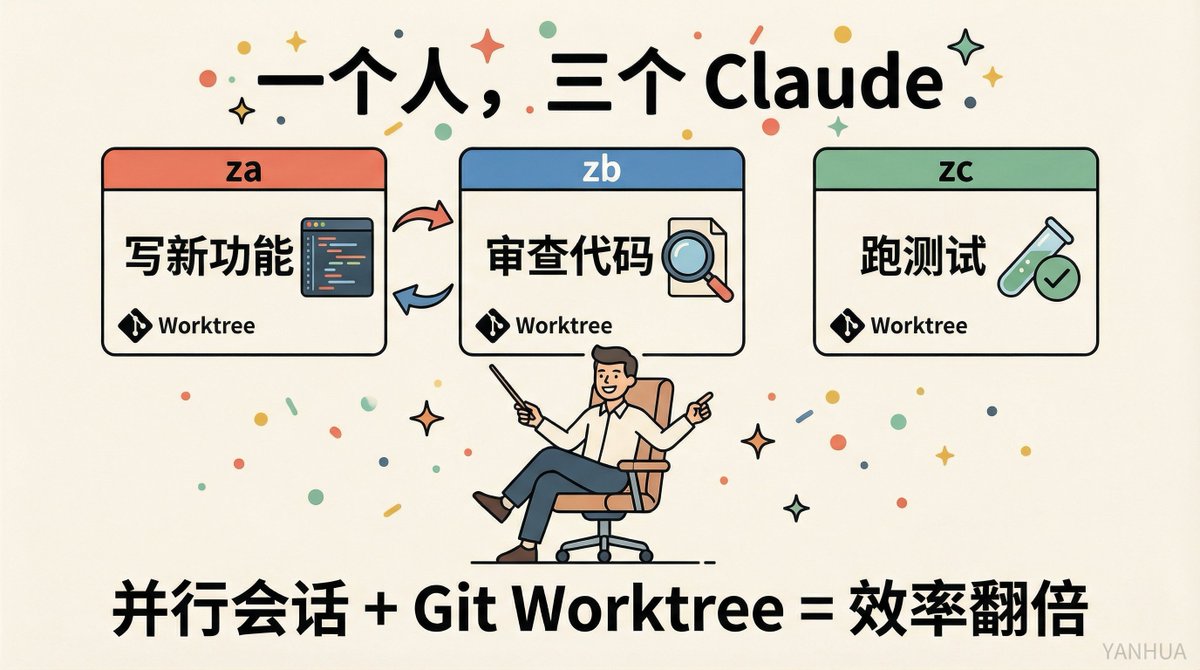
You can open multiple Claude Code sessions simultaneously, paired with git worktrees (independent working copies of the codebase), without interfering with each other.
For example:
🅰️ Session A is responsible for writing a new feature.
🅱️ Session B is responsible for reviewing the code written by A.
Give A's output to B and let it find edge cases and defects. Then bring the feedback back to A.
One Claude writes, another Claude reviews. Higher code quality, faster efficiency.
Some people open 3-5 sessions simultaneously, name the worktrees, and set shell aliases (za, zb, zc) for one-click switching.
You can use the same method for Test-Driven Development: One Claude writes tests first, another writes code to pass the tests. TDD, but Claude does all the heavy lifting.
Strategy 8: Encapsulate Repetitive Operations into Skills#
If you repeat an action more than twice a day in Claude Code, you should turn it into a Skill.
A Skill is essentially a saved workflow. You write the steps, give it a name, and later just call the name.
I've encapsulated over a dozen Skills myself: cover image generation, article publishing, image compression, webpage-to-Markdown conversion...
Each evolved from "manually saying the full prompt every time" to "one command gets it done."
Boris's rule is worth adopting: If you do it more than twice a day, encapsulate it as a Skill.
Boris's team built a Skill for BigQuery, allowing team members to perform data analysis queries directly in Claude Code without even writing SQL. One Skill, reusable across all projects.
Strategy 9: Give Real Data, Not Your Guesses#
The traditional bug-fixing process goes like this:
You describe the bug in words → Claude guesses wrong a few times → You correct it a few times → Finally fixed.
The wasted context space in between is enormous.
A faster approach: Give Claude the actual error information, then walk away.
Boris's team integrated Slack MCP. When Slack reports a bug, they paste the conversation directly to Claude and throw in one word: "fix."
No extra explanation, no hand-holding. Claude reads the conversation, finds the problem, and fixes it.
Or say "go fix that failing CI test," then walk away. Didn't tell Claude which test, didn't explain why it failed. Claude still figures it out.
The key is: Give Claude real data (Slack threads, error logs, Docker output), not your guesses about the problem.
Claude is excellent at reading distributed system logs and pinpointing failure points precisely. As a backend developer, this surprised me pleasantly.
Putting It All Together: My Daily Workflow#
Let me share my typical daily workflow now, connecting all the strategies above:
Before starting a task:
- Check if CLAUDE.md needs updating.
- Assess task complexity to decide if Plan Mode is needed.
During task execution:
- Complex researchThrow to subagents.
- Writing codeMain session + specific prompts + built-in validation.
- Code reviewOpen a second session.
Every 30-45 minutes:
- Let Claude summarize progress.
- Evaluate if a context reset is needed.
After task completion:
- Mistakes Claude madeUpdate CLAUDE.md.
- Repetitive operationsEncapsulate into Skills.
This workflow has increased my efficiency by at least 3x. Not because Claude got stronger, but because I learned to manage its "brain."

Final Words#
Back to the analogy at the beginning of the article.
The context window is Claude's whiteboard. The whiteboard's size is fixed, but you decide what to write on it and when to erase and start over.
Managing context is essentially managing the AI's attention.
This is a new skill. It's unrelated to programming ability or domain knowledge, but it determines how much value you can extract from AI.
The sooner you master it, the sooner you benefit.
What's the biggest context window pitfall you've stepped into? Let's chat in the comments 👇
Reference Sources:
- Anthropic Official Best Practices Documentation: https://code.claude.com/docs/en/best-practices
- Boris Cherny (Claude Code Creator) Shares: https://x.com/bcherny
- @Meer_AIIT's Claude Code Best Practices Analysis