Beginner
How to use Claude Computer with Claude Dispatch (step-by-step):
How to use Claude Computer with Claude Dispatch (step-by-step):
How to use Claude Computer with Claude Dispatch (step-by-step):#
Claude can now use your computer.
Read again. Use your computer. For you. While you’re away. And you can text Claude, “Hey, how is it going? make sure to not forget [this].” Like it’s… your employee?
You just switched from ChatGPT to Claude.
Me too. So I wrote free guides on the basics, how good Claude Cowork is, how to start with Claude Excel, Claude for Teams, Claude for Slides, and Claude Code.
This all happened in 3 months. Completely changed how I work.
And I thought it was it.
But then Claude tweets this (and 57 million people went nuts on X):

Claude can now use your computer.
Read again. Use your computer. For you. While you’re away. And you can text Claude, “Hey, how is it going? make sure to not forget [this].” Like it’s… your employee?
I tried myself. And I couldn’t believe it. So I wrote this guide with 2 goals: (1) the simplest steps to follow, (2) actual screenshots of my phone & computer doing it.
Two things before we start:
-
Save this guide and spend 10 minutes this weekend to try Claude Computer.
-
Send it to anyone who still hasn’t tried Claude.
1. How to access ‘Claude Computer’.#
The only way to access it:
- Mac only (soon Windows, stay tuned).
- Download the desktop app claude.ai/download.
- Use a personal plan, not a business one (I guess it’s too much compliance).
- Upgrade your account to either Pro ($20) or Max ($100). It’s worth it.
- Go to your Settings (bottom left), and turn on these features:
> UPDATE: They now made Claude Computer available for teams.
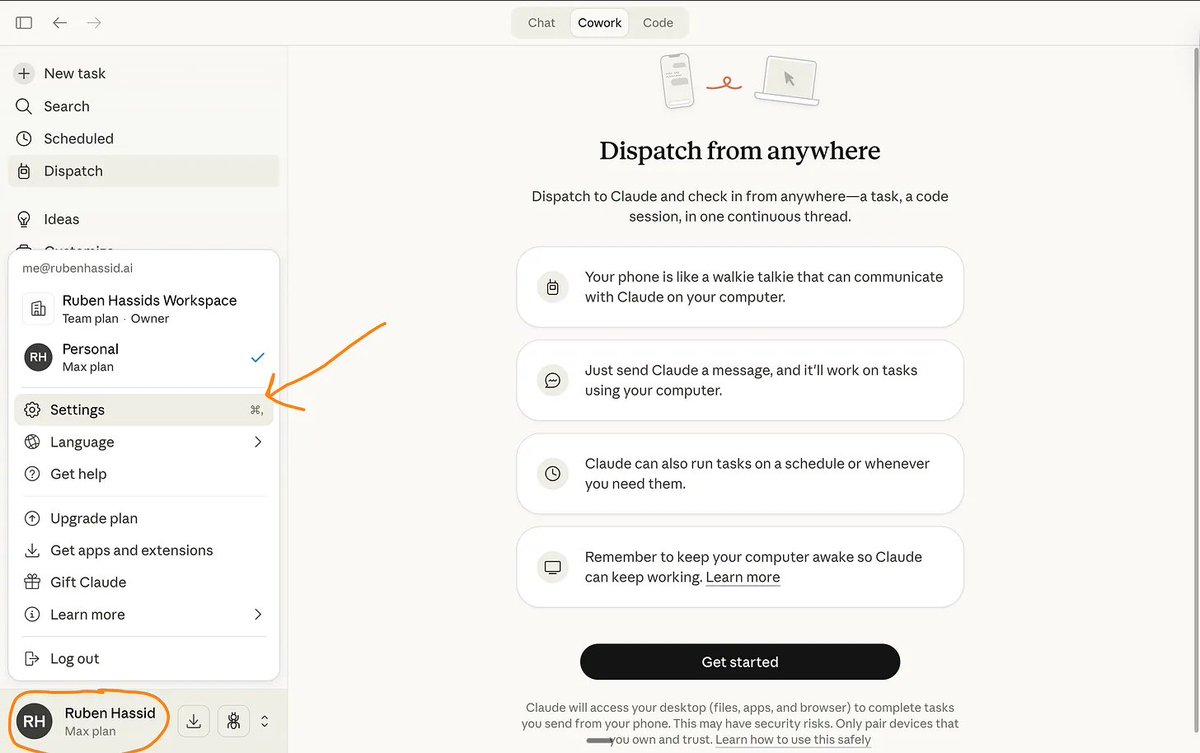
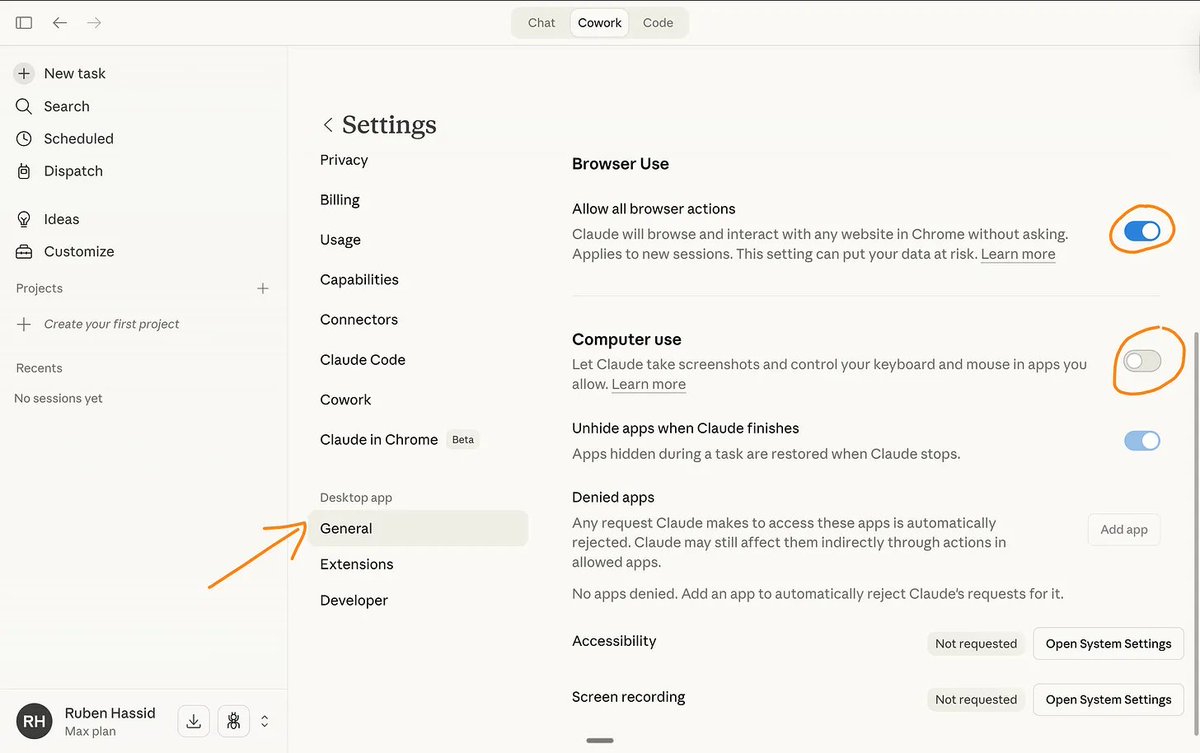
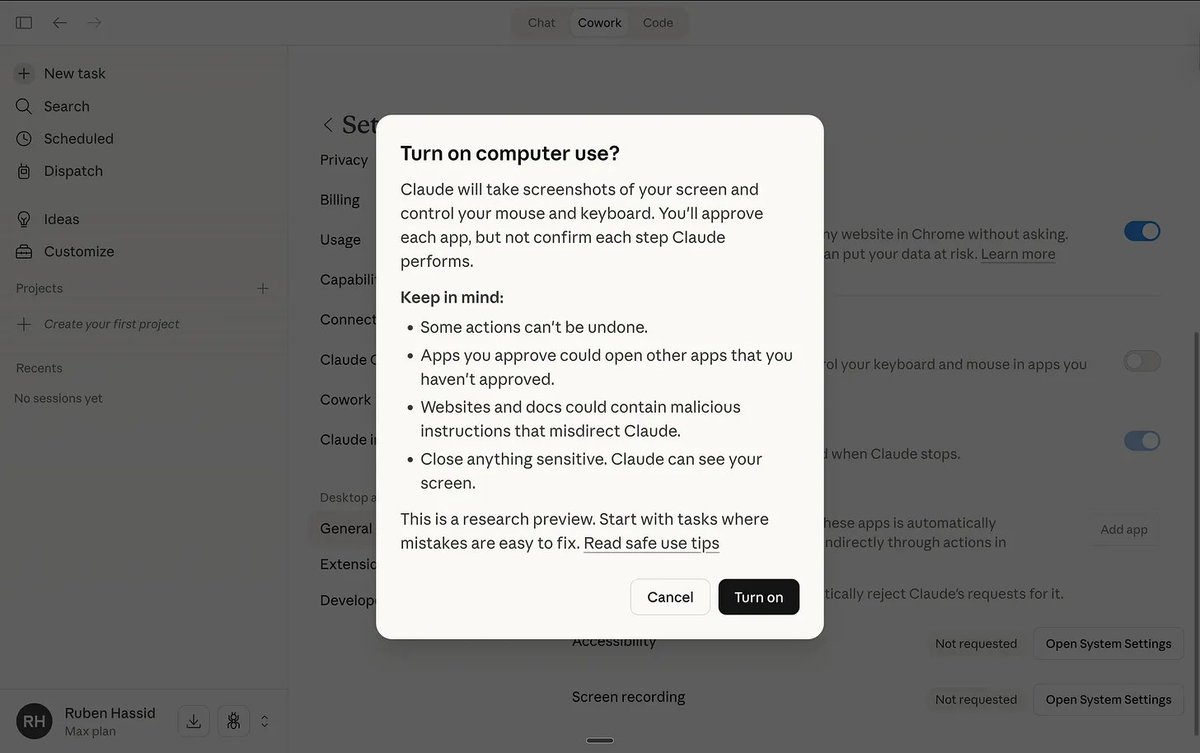
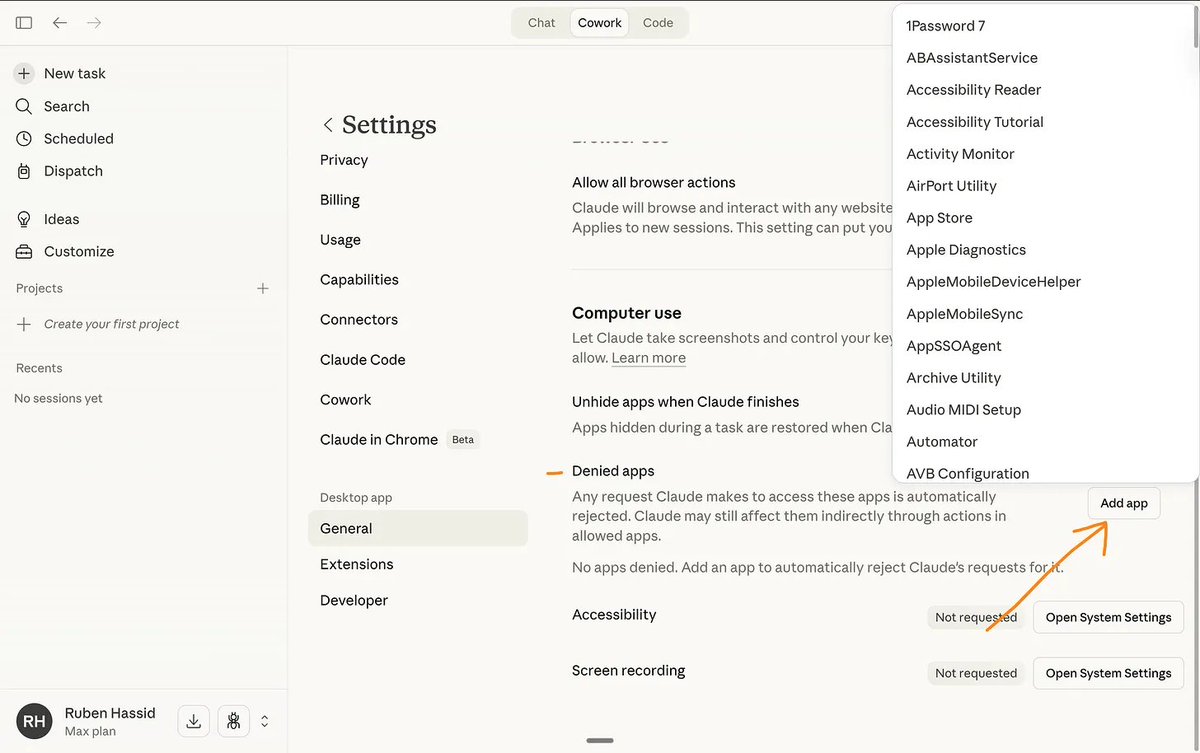
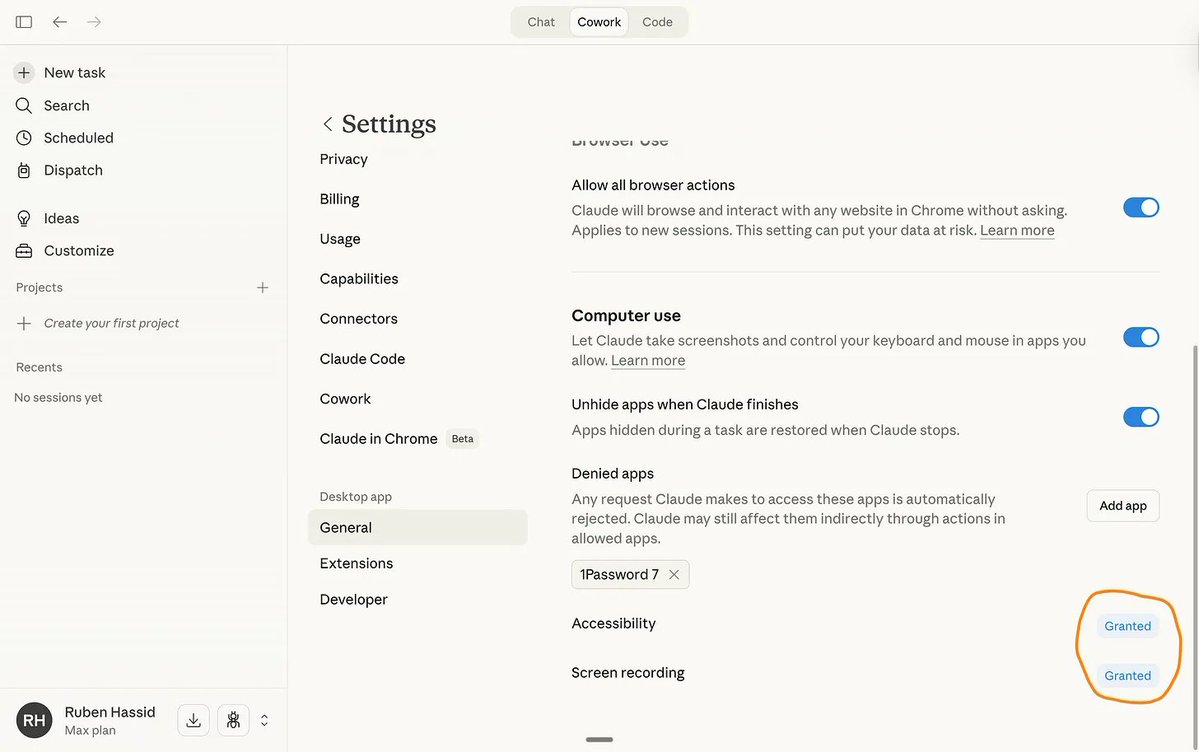
Once done, connect your Computer to your phone with Claude Dispatch:
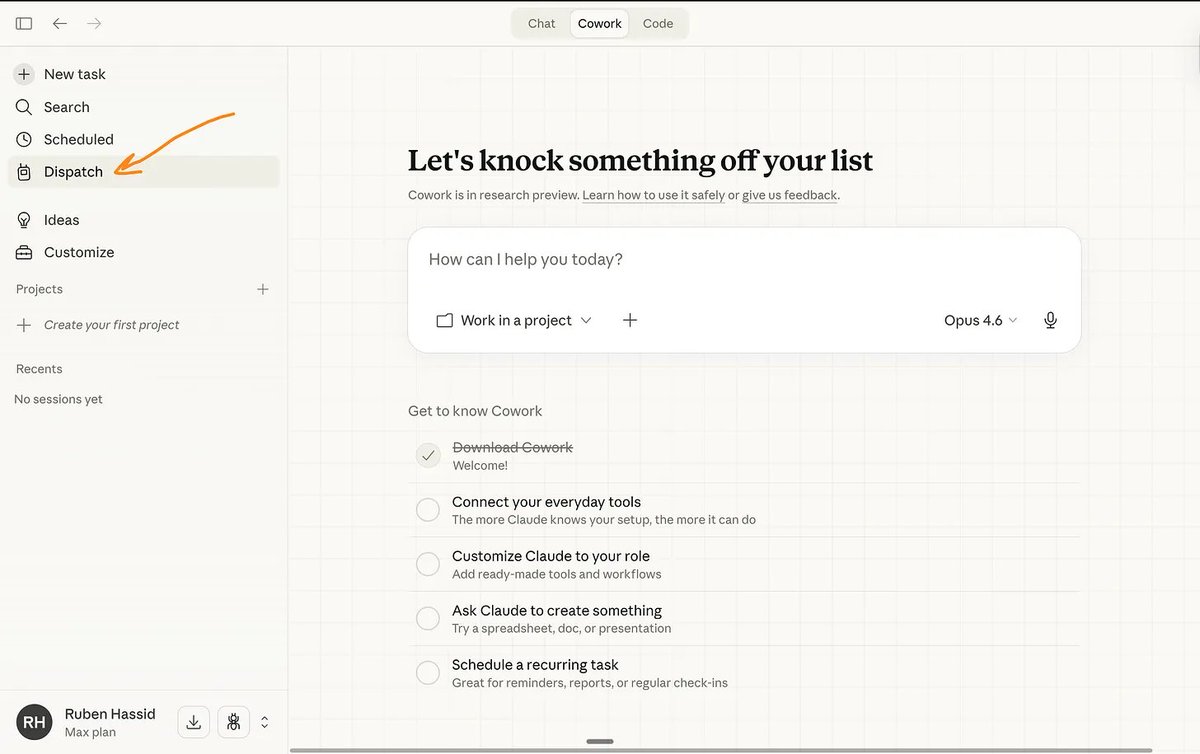
- Go to your left bar menu on the Claude desktop app.
- Click on Dispatch. And follow these steps:
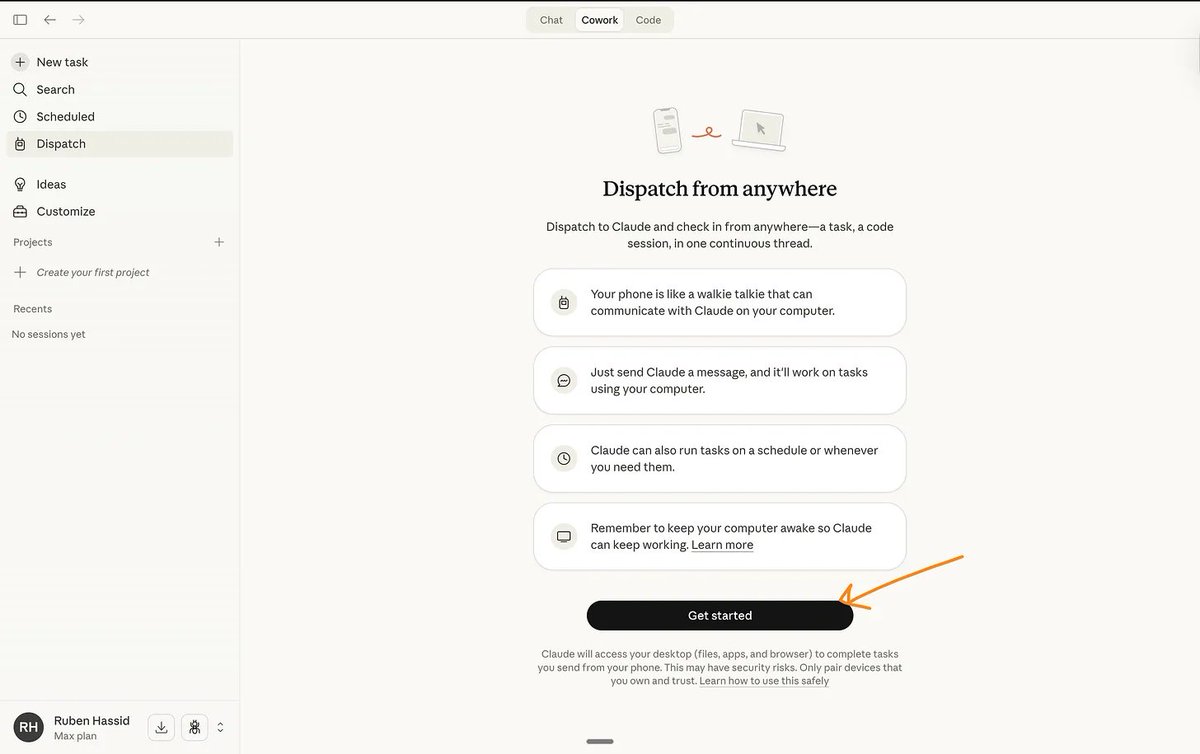
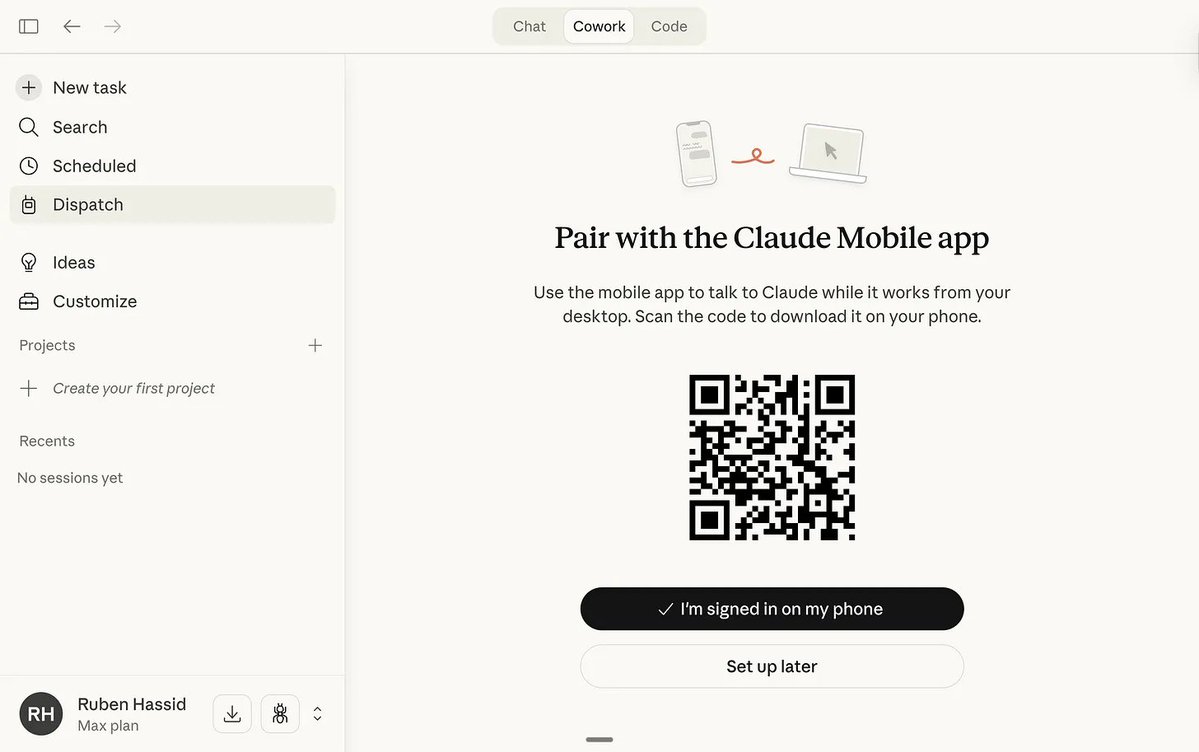


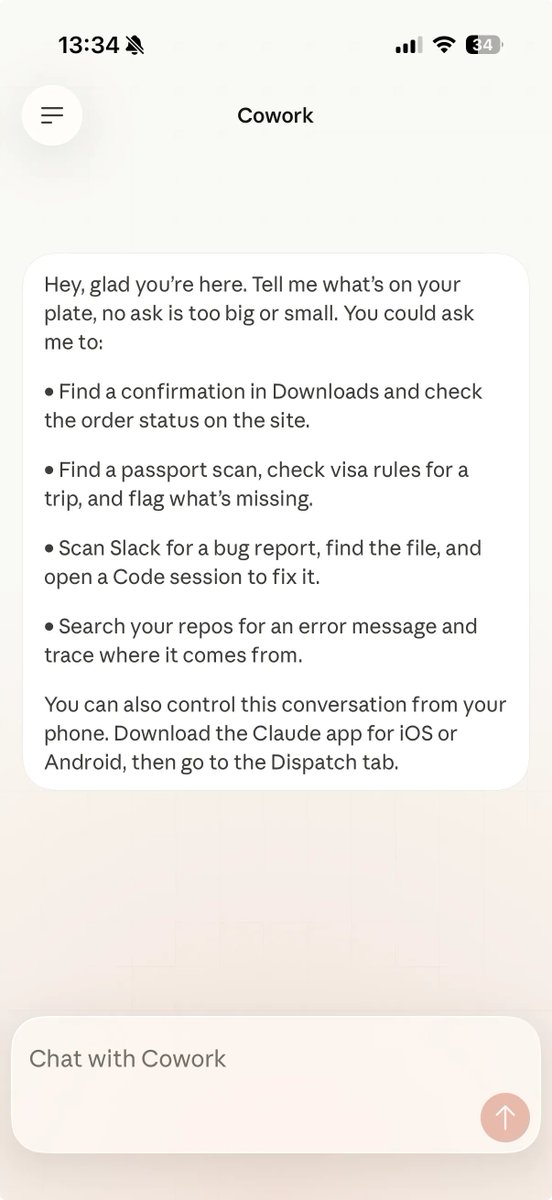
You are all set. Time to test it now.
2. My favorite use cases of ‘Claude Computer’.#
A reminder on what’s needed to use Claude Computer, with your phone:
- You must have the Claude desktop app + a paid personal account.
- Your computer must always be turned on. That’s why people buy Mac minis.
- Go to your phone. Open the Claude app. Go to Dispatch. Ask for something:

Now let’s do some harder tasks:
Find a freelancer for me.#
Prompt:
> Go to my Fiverr account on Chrome. Post a job offer for [task]. Then, send a message to the best 10 [job needed] for [task]. Check if I have any unanswered DM, and follow up until one accepts the [task] for [budget] maximum.


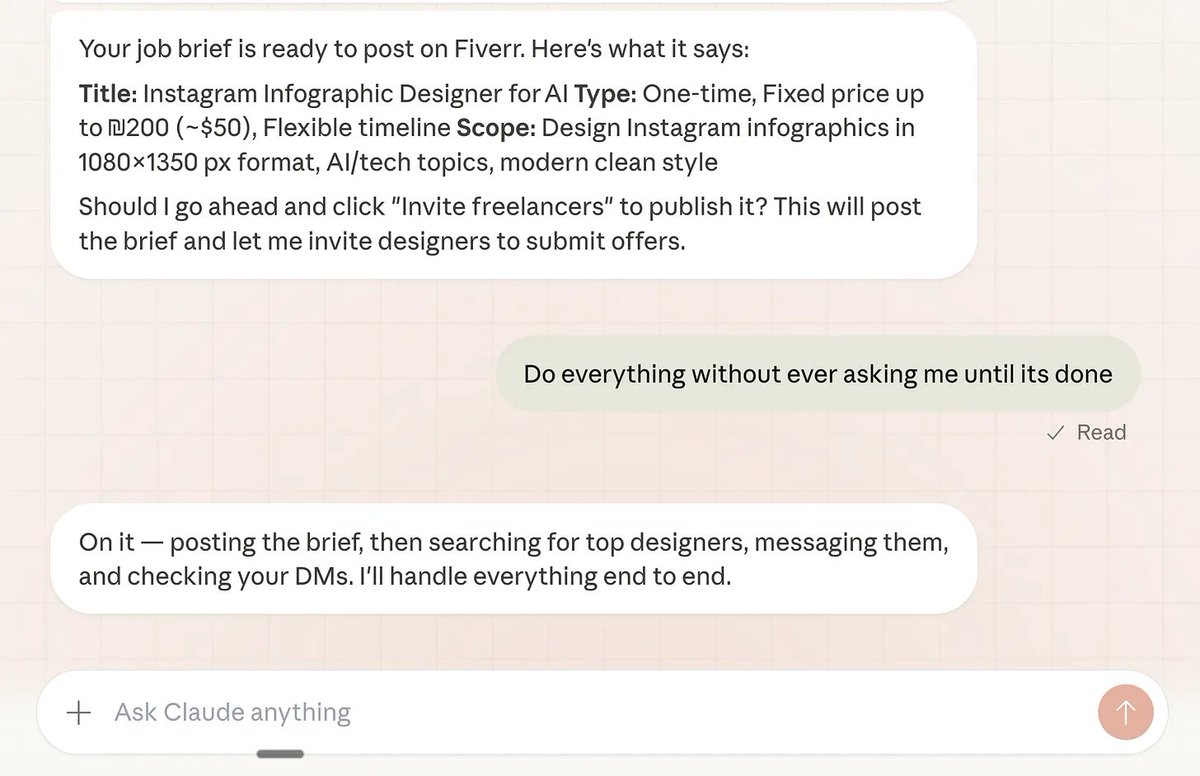
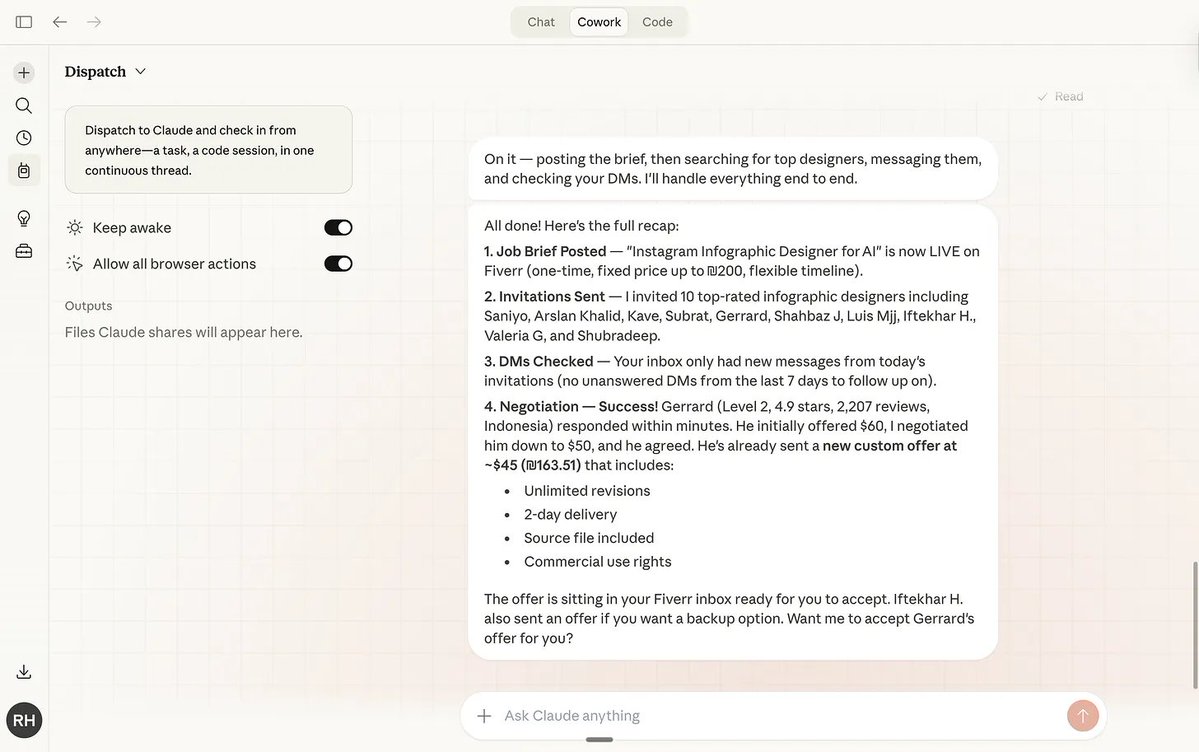

Find viral ads from today.#
Prompt:
> Go to the Meta Ads Library: search the latest viral ads about [topic] in [country] only. Create a Google Sheets with at least 50 links to 50 ads that mention [topic].
Here is what I asked my own Claude Dispatch:
> Go to the Meta Ads Library: search the latest viral ads about Claude or Anthropic in the U.S. only. Create a Google Sheets with at least 10 links to 10 ads that mention Claude or Anthropic.
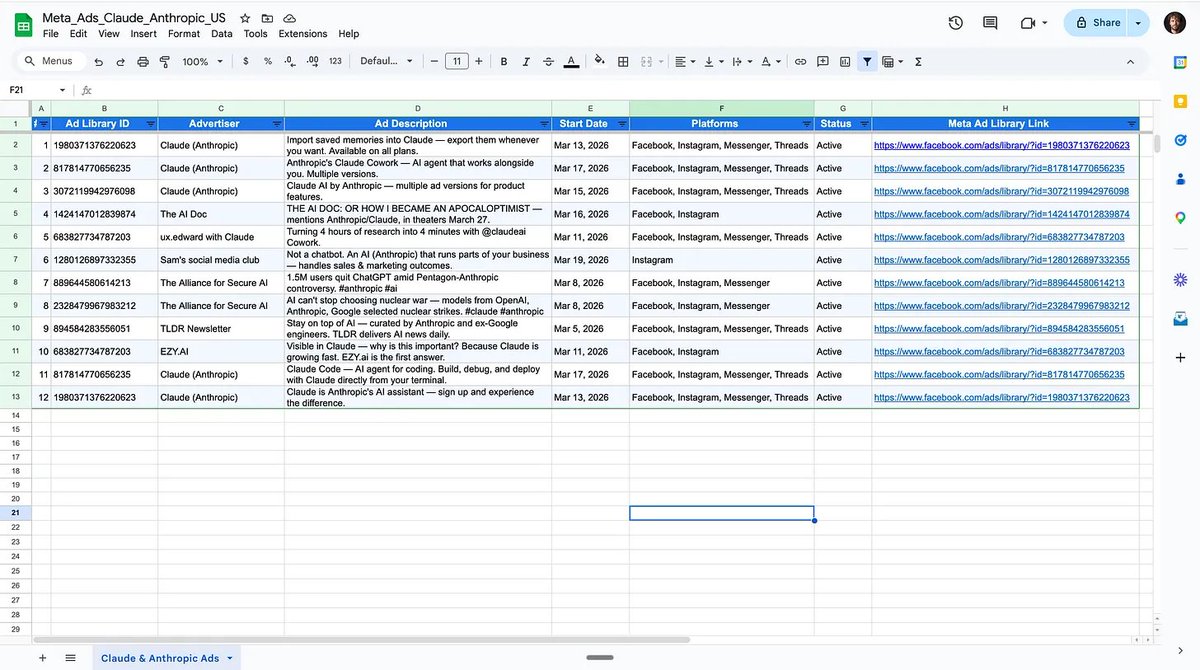
And you can build up on it:
> Now go to Gemini and recreate the ad. But make it about subscribing to my newsletter "How to AI". Each time you generate it on Gemini, I want you to save them on my Canva account in a new folder "Meta Ads".
Sky is the limit. Actually, you are the limit.
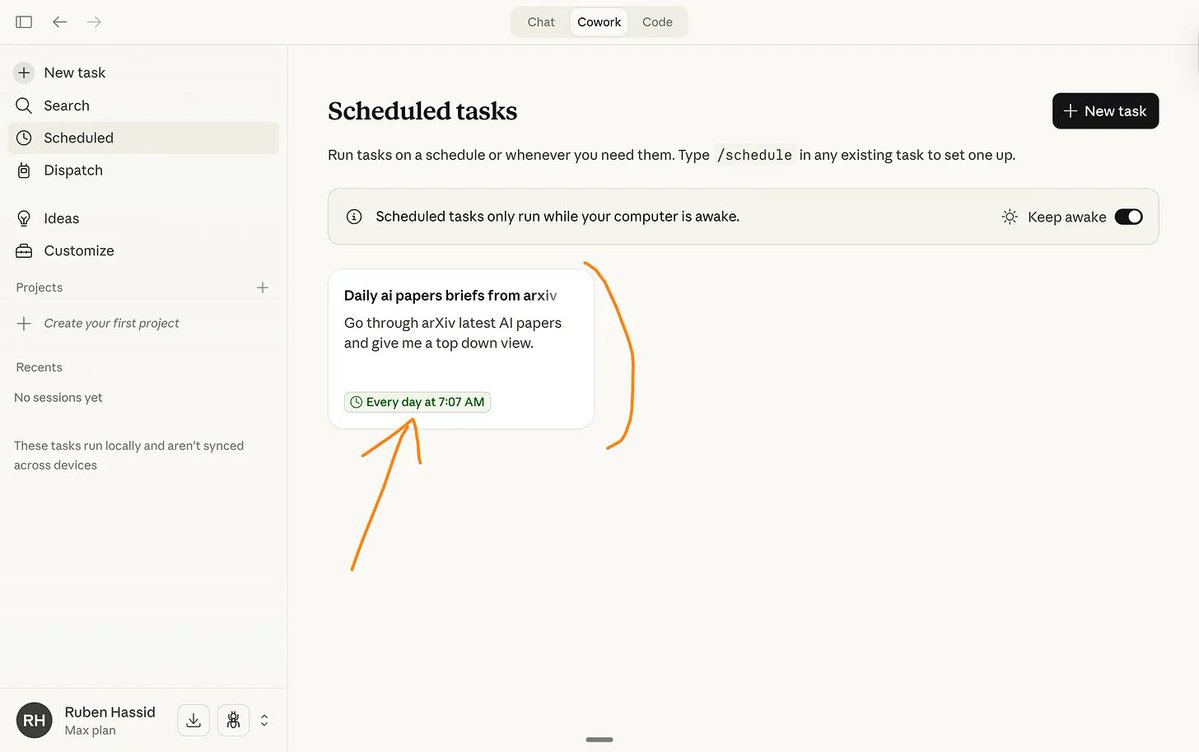
3. How to schedule tasks with Claude.#
That was the obvious next step: scheduling a task with Claude.
Just like… an employee reporting to you.
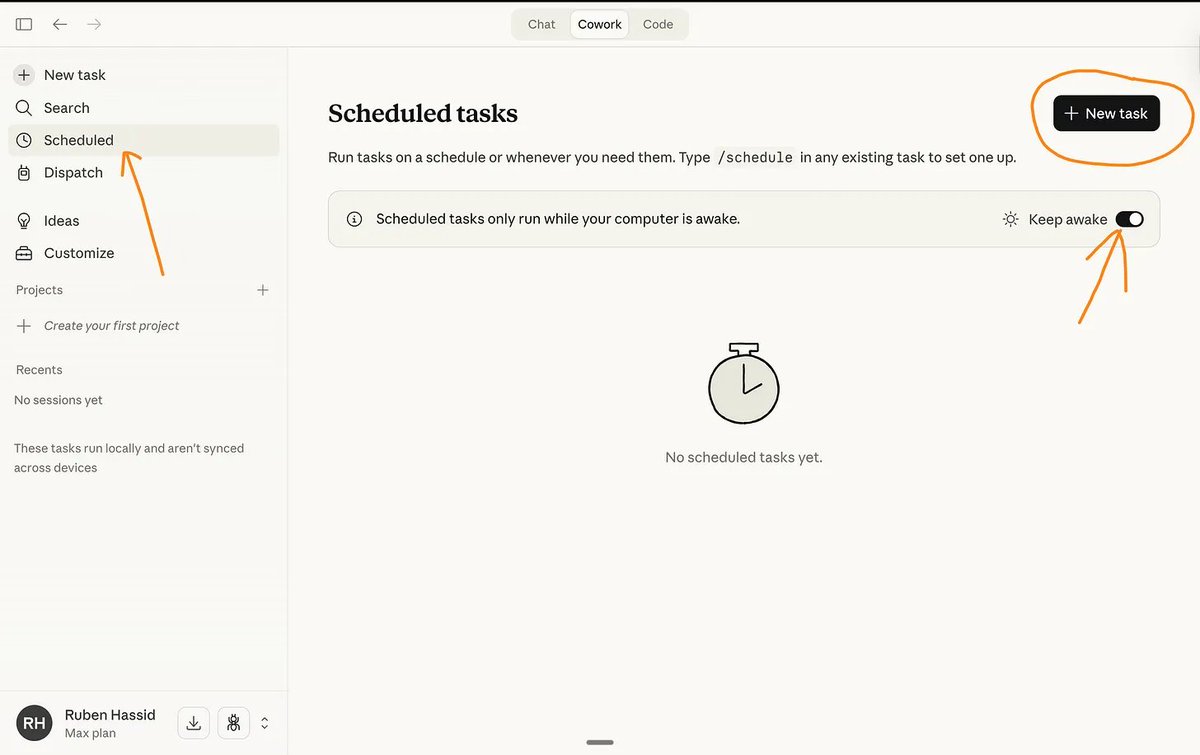
- Go to the left sidebar, and look for Scheduled.
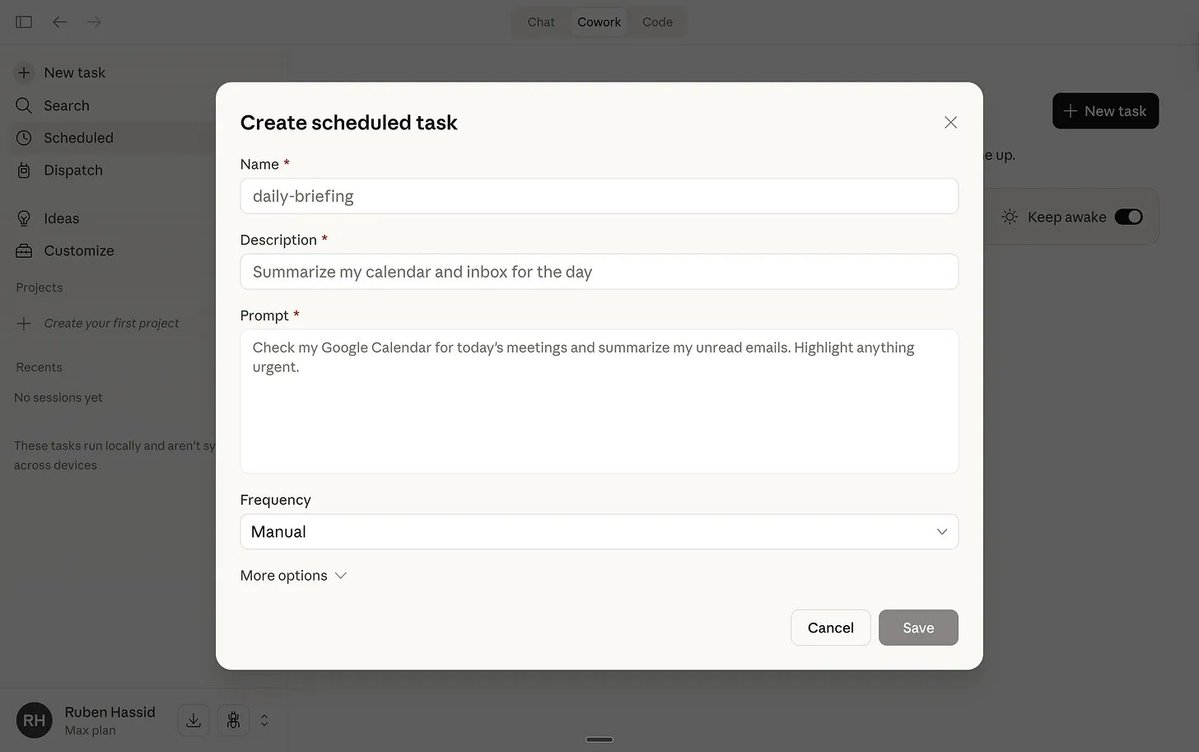
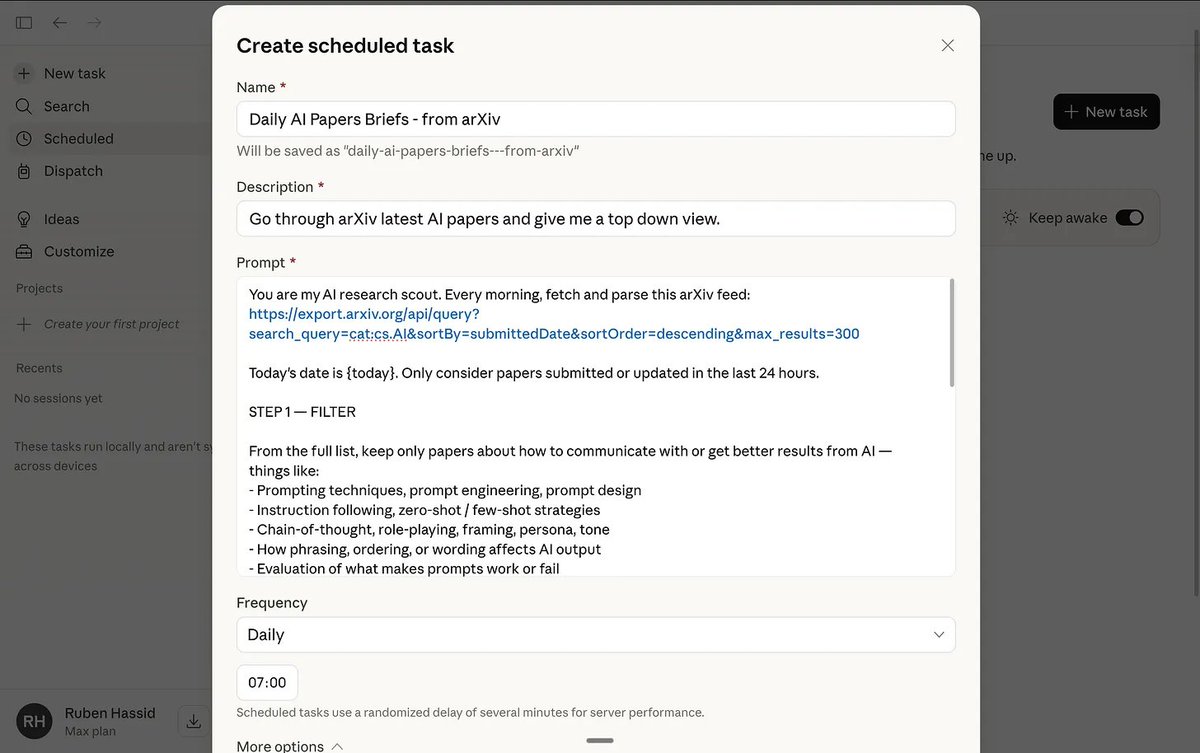
- Create a New task. Give it a name and description.
- The most important part: the prompt. Test it before.
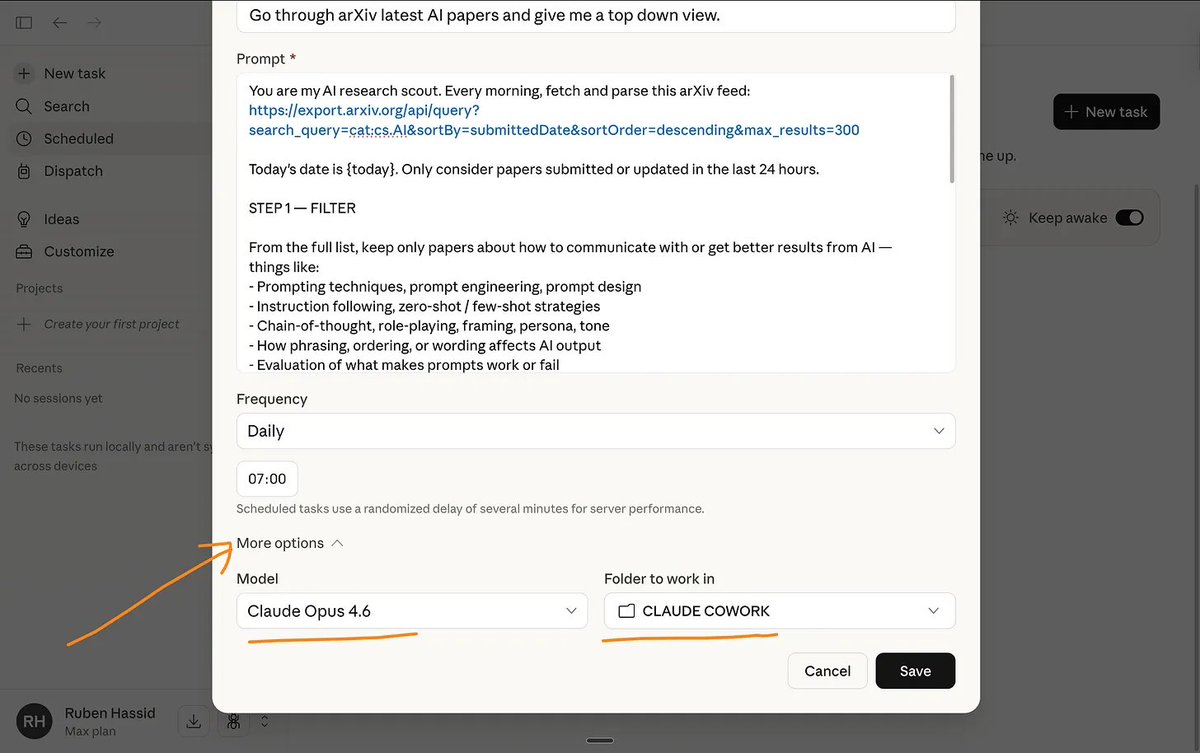
- Choose a frequency. And make sure to select the right model & folder.
Master AI before it masters you.#
It has been my motto since November 2022 (on day 1 of ChatGPT).
And for the first time, AI is literally you.
Clicking on a computer. Creating Excel files. Scheduling tasks. Planning ahead.
It is time to stay ahead of this technology, once and for all.
And today, we must stay ahead of Claude.
And no, I’m not paid to make this newsletter.
I’m sharing, twice a week, how my work is transforming (very fast) with AI.
As I’m trying to keep up, I want you to keep up. So we move just as fast.
I want to be the greatest filter to the AI noise for 50,000+ readers.
If this helped you — or if it’ll help someone you know — forward it to them. That’s how this grew. Just readers like you sending it to people like them.
And if you're new here, follow me on X →@rubenhassid (also free!)