Beginner
Five Steps to Create an OpenClaw Multi-Agent Telegram Group Chat! Includes Advanced Hacks! (Practical Guide + You'll Get It or I'm to Blame)
Five Steps to Create an OpenClaw Multi-Agent Telegram Group Chat! Includes Advanced Hacks! (Practical Guide + You'll Get It or I'm to Blame)
TIP: Not everyone needs multiple OpenClaw agents. Create them based on your actual business needs. More is not always better. Remember this.
By the way, this guide assumes you already have OpenClaw installed! If not, check out other tutorials on how to install it!
If you're not familiar with configuring OpenClaw, check out the previous guide: OpenClaw Growth Diary, From Zero! Must-Read After Installation! (40 Days of Practical Experience + Includes Role Prompts) Content: https://x.com/berryxia/status/2028668902465733084
The Bottom Line First#

You think building a multi-role AI team requires multiple bot accounts and multiple servers?
It doesn't.
With one Gateway, one Bot, and a few Telegram groups, you can have multiple roles like Product Manager, QA, Engineer, and Content Creator online simultaneously, working independently without interference, and even able to call upon each other.
This isn't magic. It's the power of OpenClaw's group routing mechanism.
Two Architectures, Choose as Needed#
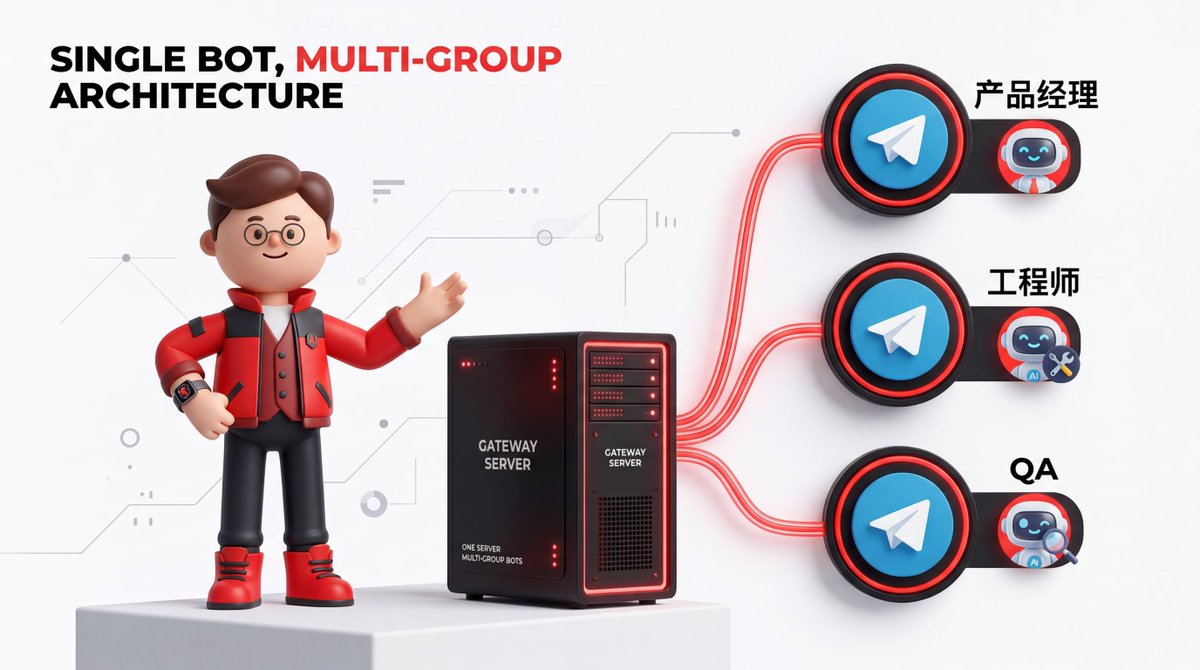
Architecture One: Single Bot, Multiple Groups (Recommended for Beginners)
One Bot Token
    ├── Group A → Agent A (Product Manager)
    ├── Group B → Agent B (Engineer)
    └── Group C → Agent C (QA)
Advantages: Simple configuration, one Bot handles everything.
Best for: Personal use, small teams.
Architecture Two: Multiple Bots, Multiple Agents (Advanced Play)
Gateway
    ├── Bot A (NuoNuo) → Default Agent
    ├── Bot B (TuanTuan) → life Agent (Life Assistant)
    └── Bot C (AiAi) → ai Agent (Technical Expert)
Advantages: Each Bot has an independent personality, isolated memory, and separated contexts.
Best for: Multiple scenarios, multiple roles, requiring memory isolation.
What's the Pain Point?#
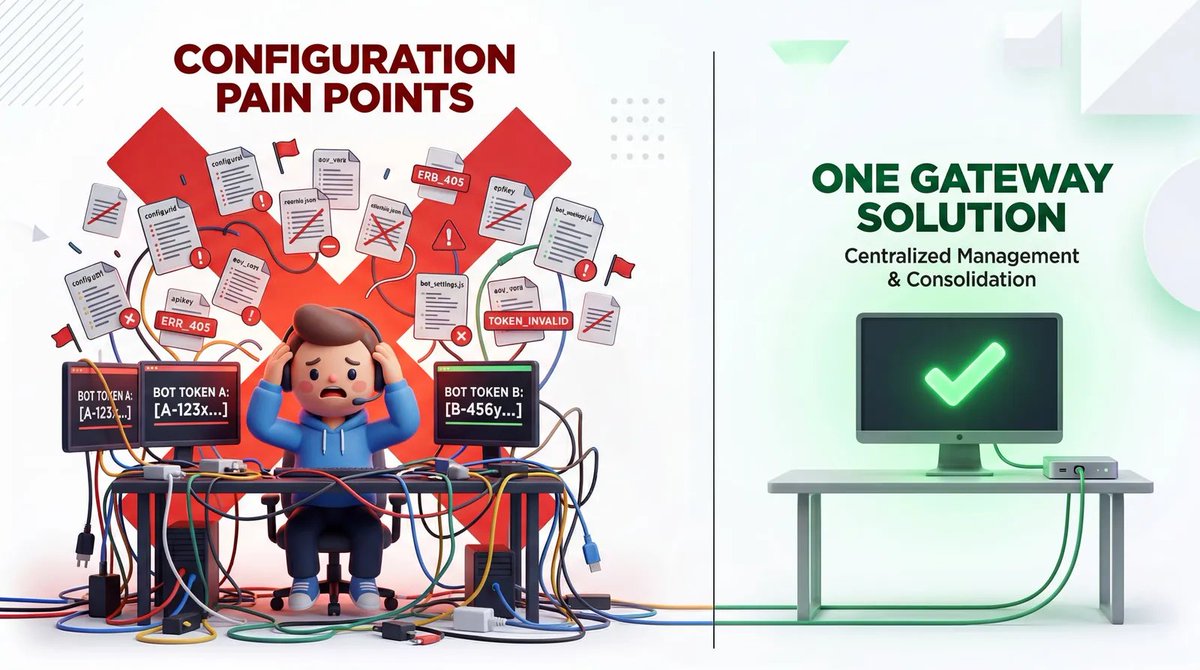
You've definitely encountered this scenario:
You want to run multiple AI roles in Telegram simultaneously—one for writing code, one for writing test cases, one for product analysis. But online tutorials tell you: each role needs its own Bot, its own Token configuration, its own running Gateway...
By the time you're configuring the third Bot, you're already questioning your life choices.
There's an even more insidious pitfall: video tutorials.
A 9-minute "step-by-step tutorial" with extremely high information density forces you to constantly pause, rewind, and screenshot. You finally manage to follow along, only to realize you missed a step and have to start over.
This article exists to solve that problem.
Core Principle (Explained in One Sentence)#
Gateway: The "brain" of OpenClaw, responsible for receiving messages, calling the LLM, and returning results. Think of it as the AI's local proxy server.
One Gateway can host multiple Agents. Each Agent is bound to a different Telegram group via "group routing."

When you send a message in Group A, the Gateway knows to hand it to the "Product Manager Agent" for processing. When you send a message in Group B, the Gateway knows to hand it to the "Engineer Agent" for processing.
The key point: They share the same Bot account but have independent memory, permissions, and workspaces.
Five Steps to Complete Configuration#
Step One: Create the Main Bot (5 minutes)
This step is foundational. You need to create a "master Bot," which will be the "host" for all your sub-Agents.
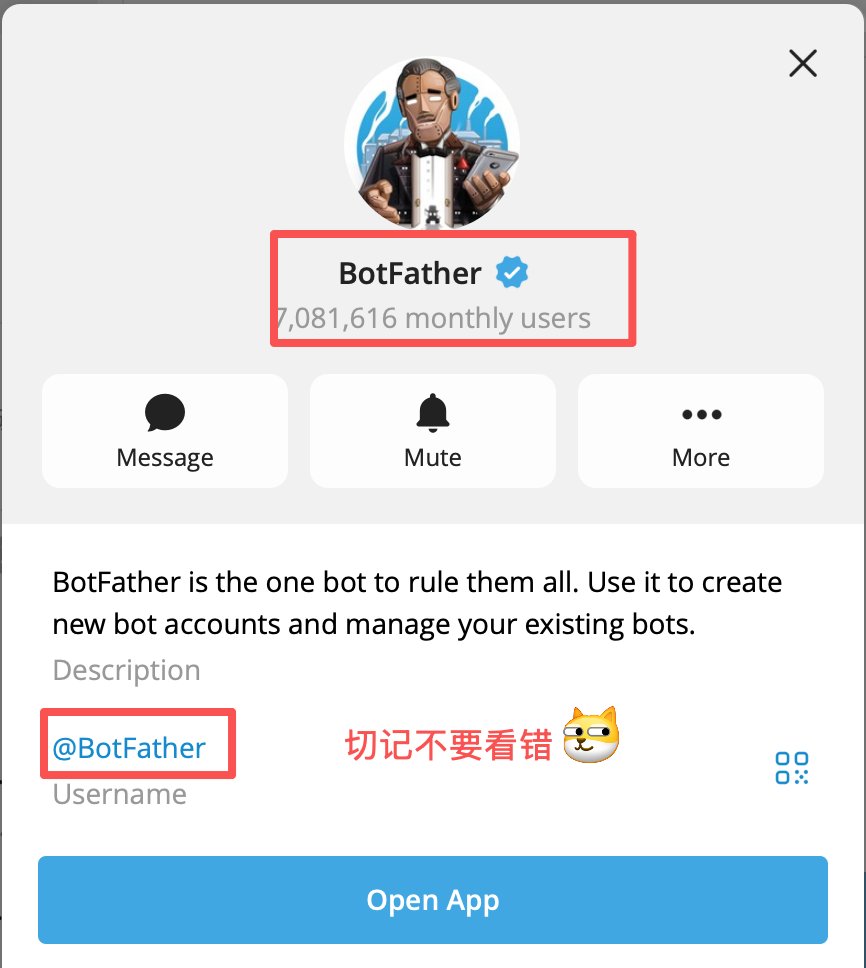
- In Telegram, search for @BotFather and send
/newbot
- Give the Bot a name (e.g.,
lifezhushou) - Set a username (must end with
bot, e.g.,lifezhushou_bot) - Copy the returned Token (looks like
123456:ABC-DEF...)
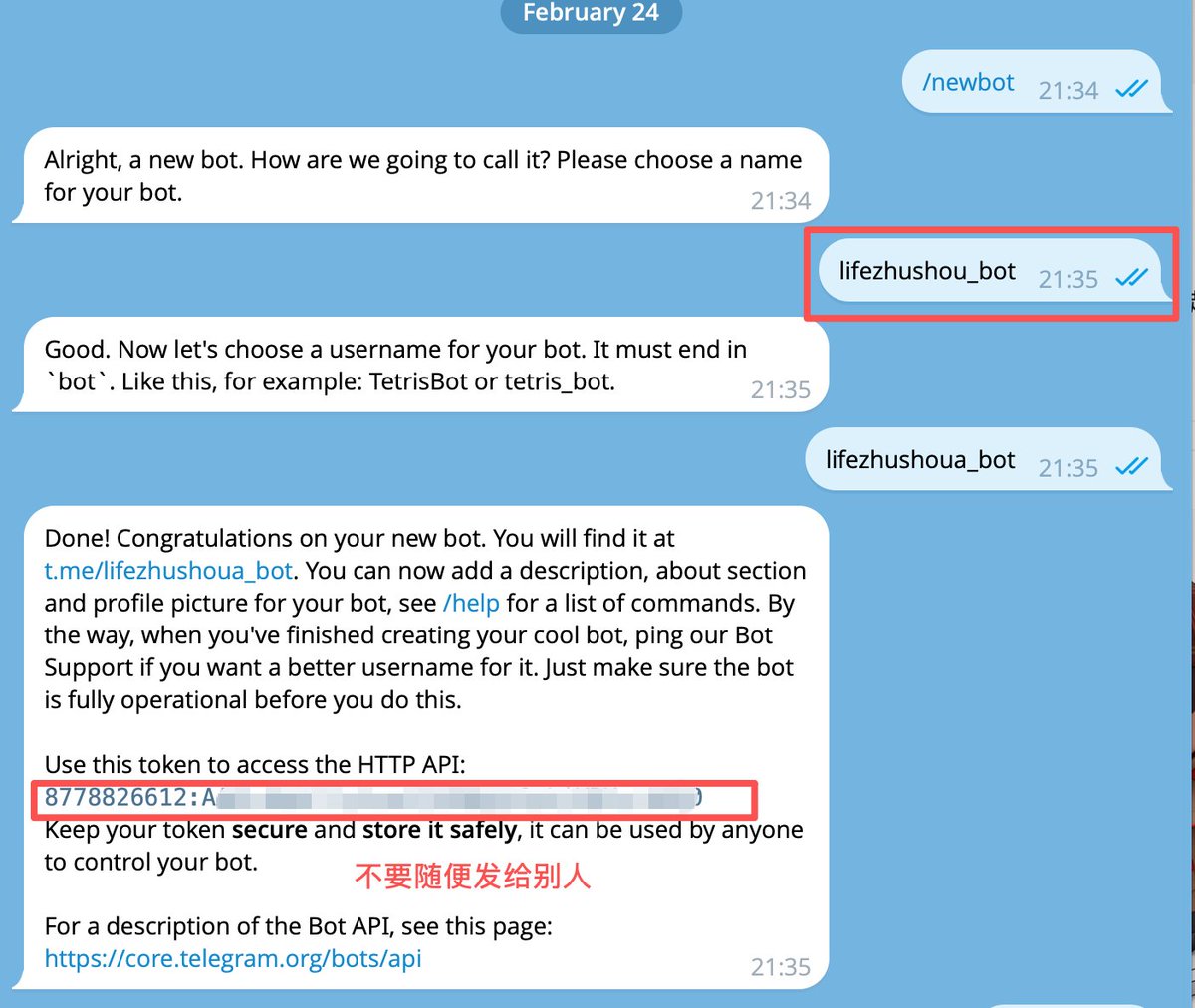
Important: Do not leak this Token value!
Then, use this Token to connect the Bot to OpenClaw:
PS: You can even send this to OpenClaw and let it help you proceed.
openclaw config

# Go to Channels → Telegram → Paste the Token
Final pairing step:
# In Telegram, private message the Bot, send `/start` to get the Pairing Code

openclaw pairing approve telegram <Your Pairing Code>
Pairing Code: Similar to a "verification code," used to confirm you have permission to operate this Bot. One pairing lasts forever.
PS: Here's an even simpler advanced hack: you can directly send this content of mine to your already-configured OpenClaw and let it learn the operational steps.
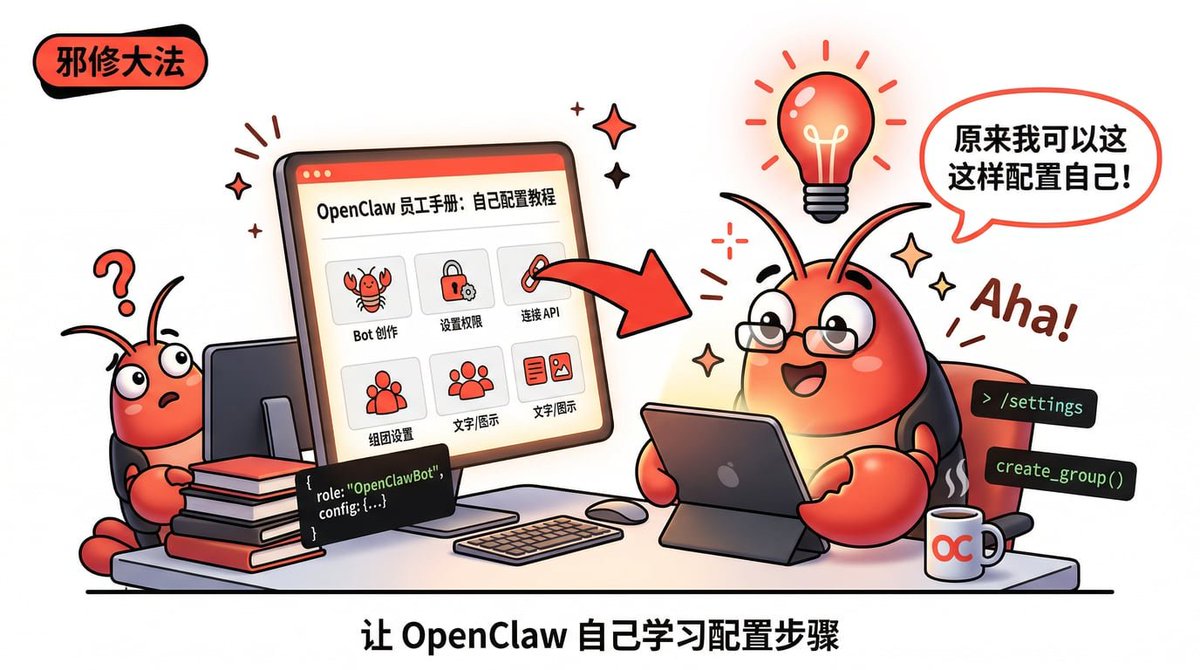
When creating the group chat, it will guide you step-by-step to complete it. This is the most convenient method (if you don't know how to find these things).
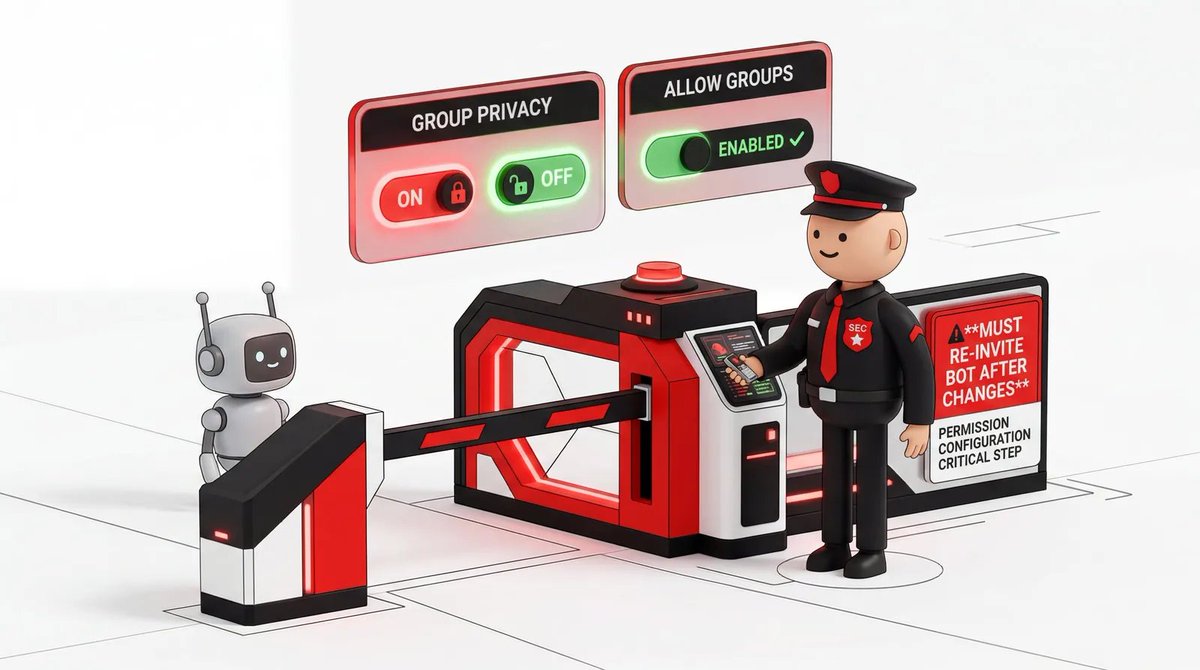
Step Two: Enable Group Permissions (DO NOT SKIP!)
This is the easiest place to stumble.
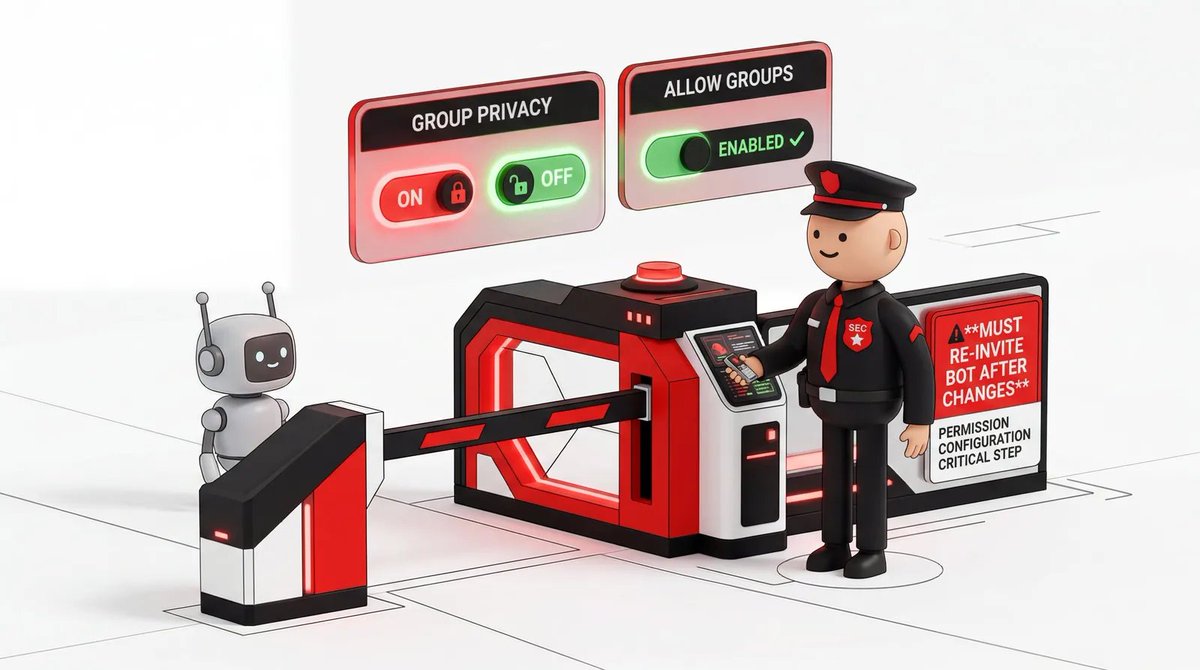
By default, Bots have "Privacy Mode" enabled, meaning they can only see messages that @mention them. If you don't turn this off, your Bot will be "deaf" in the group.
Go back to @BotFather
Set BotSetting

Group Privacy Settings
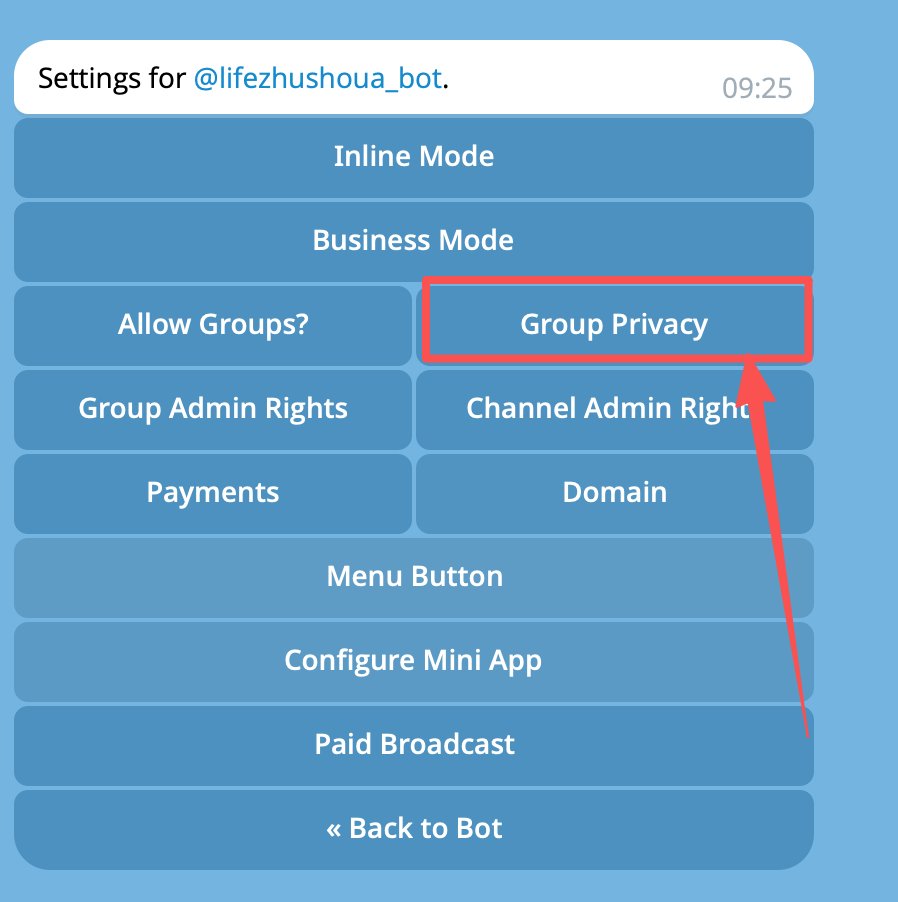
Turn Off Privacy Mode
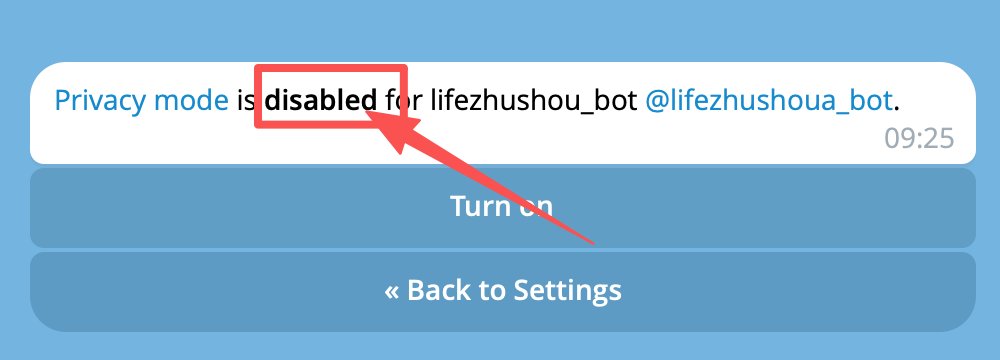
/mybots → Select your Bot → Bot Settings
  → Allow Groups: Enable
  → Group Privacy: Disable
Key Point: After making these changes, you MUST kick the Bot out of the group and then re-add it. If you don't re-add it, the settings won't take effect. This is the fundamental reason many people configure for ages with no response.
Step Three: Create Groups, Get the Group ID
Each sub-Agent needs its own dedicated group. The group's ID is the "routing address."
- Create a new Telegram group (suggest naming it after the role, e.g.,
虾友们) - Add the main Bot to the group
- In the group, @mention your Bot and ask: "What is the current group's ID?"
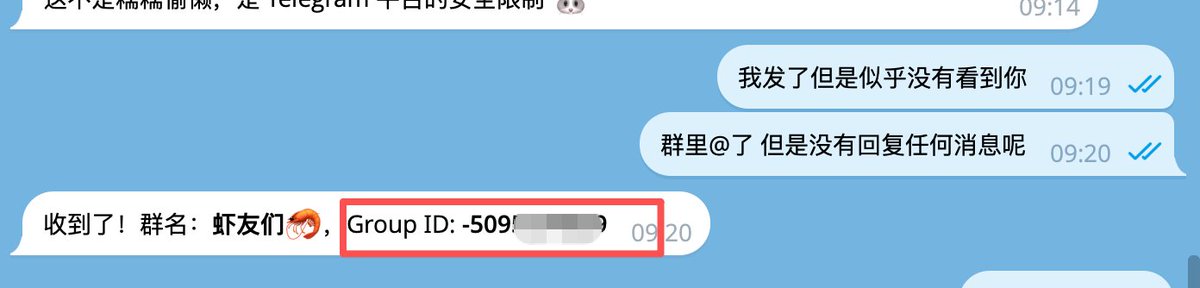
- The Bot will reply with a string of negative numbers, e.g.,
-1001234567890
Copy and save this ID; you'll need it in the next step.
Group ID: The unique identifier for a Telegram group, starting with a negative number. The Bot uses this ID to know which group a message came from.
Step Four: Use a Prompt to Automatically Create a Sub-Agent (Core Step)
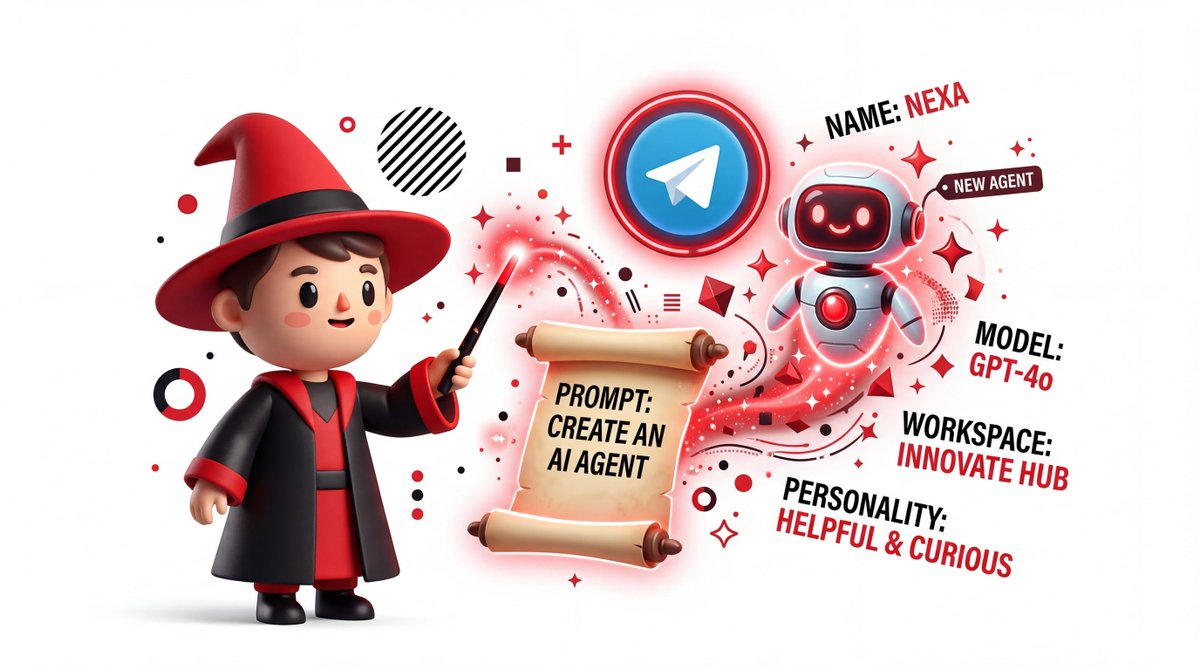
This is the most crucial step in the entire process.
Go back to the private chat window with your main Bot and send the following prompt. You only need to replace the content in brackets with your own information:
You are now my OpenClaw master Agent. Please strictly follow these steps to create a brand new, independent sub-Agent for me:

1. Agent Basic Information:
- Name: 【Sub-Agent Name, e.g., Product Manager】
- Model: 【Model, e.g., Claude-3-6-sonnet or GLM5】
- Workspace: Create a new independent workspace (name it the same as Name)
- Personality: 【Role description, e.g., "You are a senior product manager, skilled in requirement analysis, user research, and product planning."】

2. Configure Routing Bindings:
- Use accountId: "main"
- Bind two peer types:
  - peer.kind: "group", peer.id: 【Your Group ID】
  - peer.kind: "channel", peer.id: 【Same as above】
- Route all messages to this new Agent

3. Group Policy:
- requireMention: false (Can reply directly in the group without needing @mention)
- groupPolicy: "open" (All user messages are visible)
- allowFrom: ["*"] (Open permissions)

4. Prevent Message Grabbing:
- Add a client: "direct" + your Telegram User ID whitelist for the main Agent

Please execute the above configuration immediately and reply with confirmation once completed.
After sending, wait 10-30 seconds. The main Agent will automatically create the sub-Agent and return a confirmation message.
Workspace: Each Agent's "independent office," containing its own memory, files, and configuration. Agents do not interfere with each other.
Step Five: Test, Then Add More Roles

Go to the group you just created and send a message directly:
Help me find today's latest AI news on my phoneIf the sub-Agent replies normally, congratulations! Your first role is successfully configured!
Next, repeat Steps Three and Four to create more roles:
- QA Agent: Skilled at writing test cases, finding bugs
- Engineer Agent: Writes code, does architecture
- Content Agent: Writes tweets, creates copy
Each role gets its own group, working independently without interference.
What's even cooler is that you can "orchestrate" them to collaborate from the main Bot's private chat:
Have Agent A and Agent B execute the tasks given by A or different tasks and submit the results to you.
This includes writing code, writing copy, anything.
The main Agent will automatically call the corresponding sub-Agents and summarize the results for you.
Advanced Play: Multi-Bot Configuration#
When you need clearer separation of scenarios, you can configure multiple Bots, each bound to a different Agent.
Configuration Example
{
  "channels": {
    "telegram": {
      "accounts": {
        "main": {
          "botToken": "Main Bot Token",
          "groups": { "*": { "requireMention": false } }
        },
        "life": {
          "botToken": "Life Assistant Bot Token",
          "groups": { "*": { "requireMention": true } }
        },
        "xiaoxiamiss": {
          "botToken": "Technical Expert Bot Token",
          "groups": { "*": { "requireMention": true } }
        }
      }
    }
  }
}
Scenario: Multiple Bots in one group, how to avoid chaos?
Option One: Default Responder
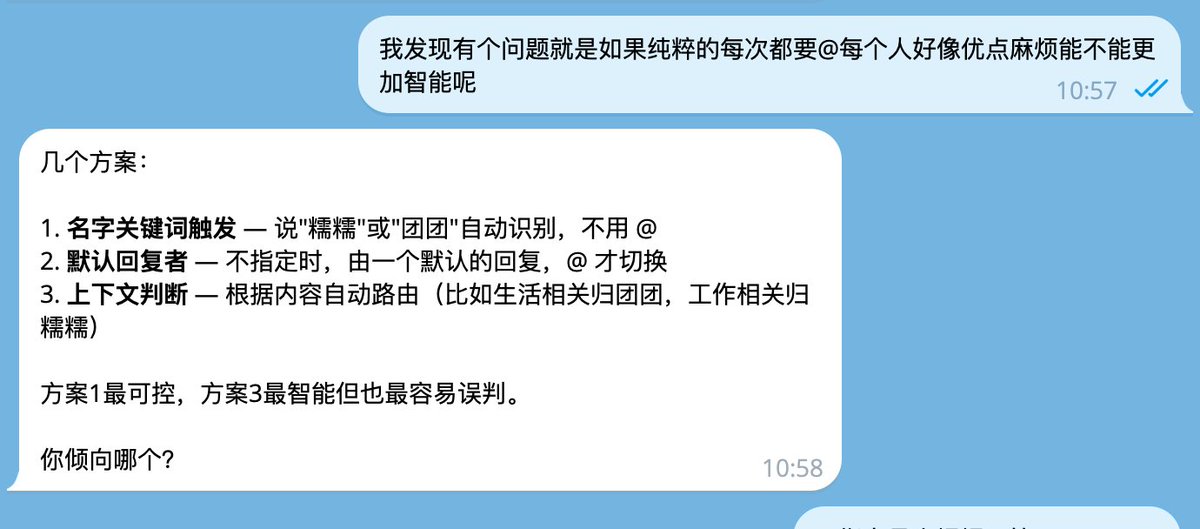
- No specificationNuoNuo (default) answers
- @TuanTuanTuanTuan answers
- @AiAiAiAi answers
Option Two: All Require @Mention
- Set
requireMention: truefor all Bots - Whoever you call answers
Permission Management#
Private Chat Permissions
{
  "dmPolicy": "pairing"  // Requires pairing code for private chat
}
Group Permissions
{
  "groupPolicy": "allowlist",  // Whitelist mode
  "allowFrom": [
    1867306242,        // User ID
    -5095174939        // Group ID
  ]
}
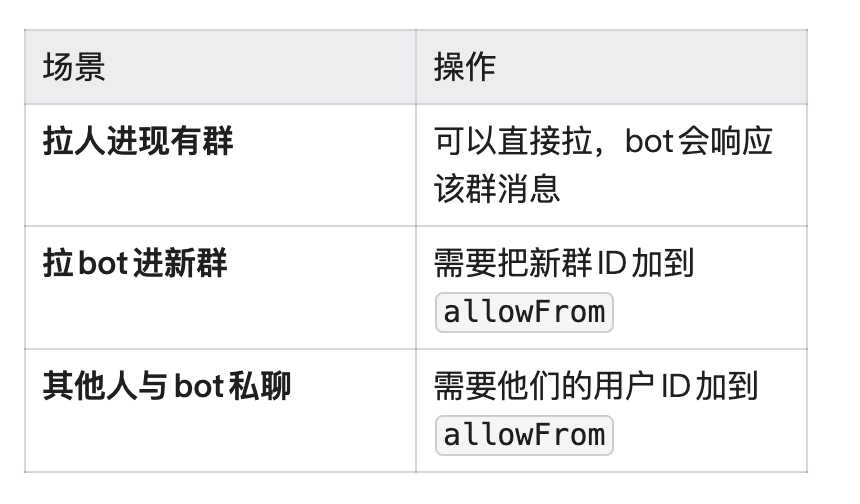
Open to More People
Memory Isolation#

Each Agent has an independent workspace, with memory isolated from others:
workspace-life/
  ├── IDENTITY.md      # TuanTuan's identity

  ├── MEMORY.md        # TuanTuan's long-term memory

  └── memory/          # TuanTuan's diary


workspace-ai/
  ├── IDENTITY.md      # AiAi's identity

  ├── MEMORY.md        # AiAi's long-term memory

  └── memory/          # AiAi's diary
What to Do If You Encounter Problems?#
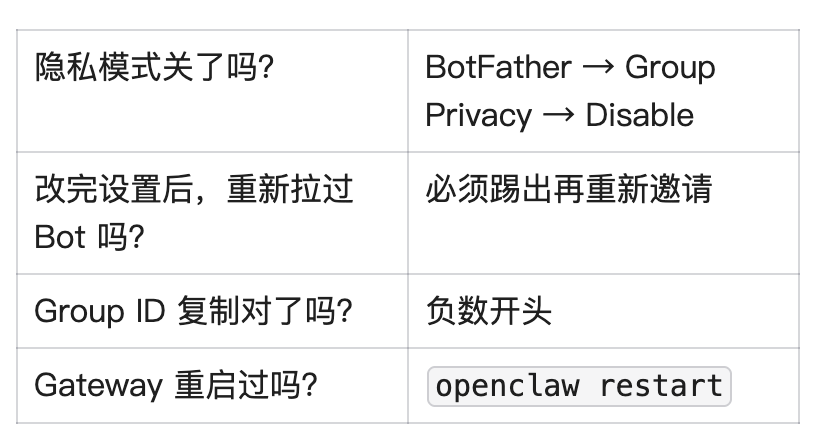
Bot doesn't reply to messages in the group
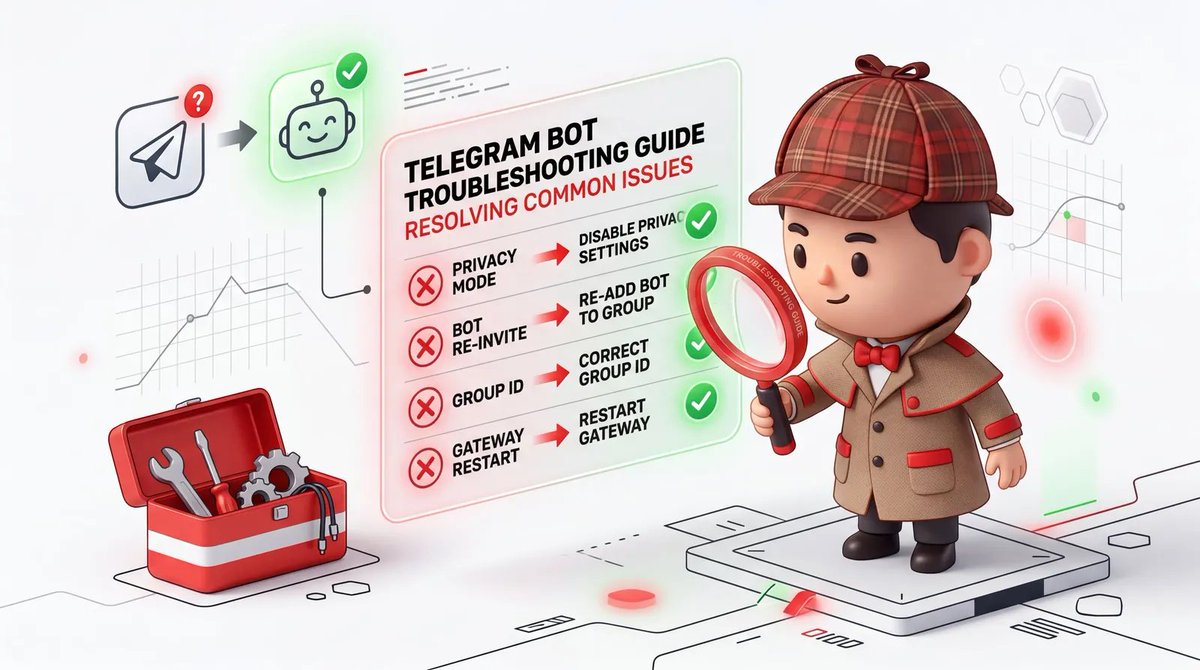
Checklist:
Bots grabbing messages from each other
Check the
requireMention configuration:false: Can respond without @mentiontrue: Must be @mentioned to respond
Recommendation: Only set one Bot tofalse, set all others totrue
Want to see detailed logs?
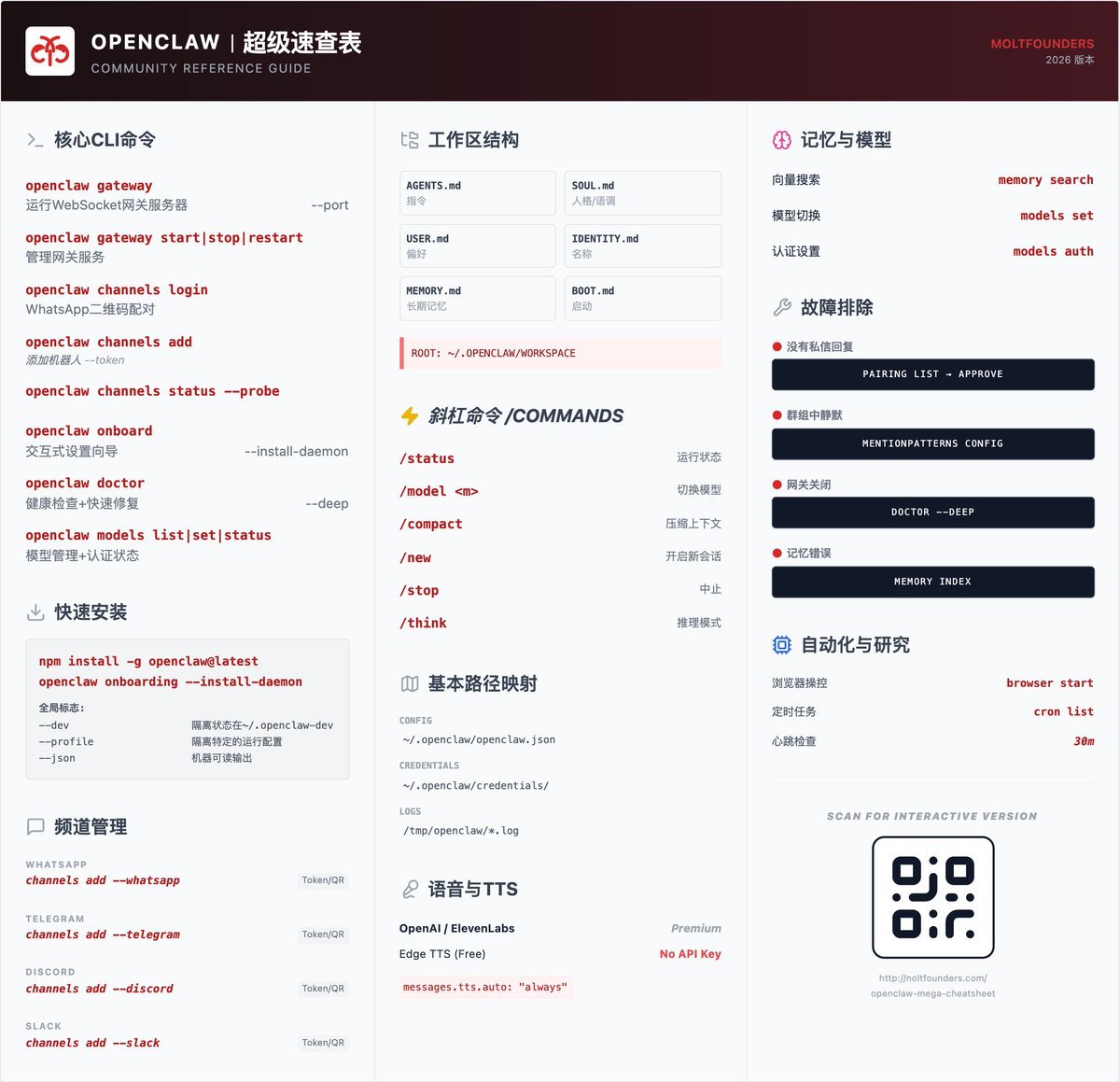
openclaw logs --followReal-time view of all message routing situations, very convenient for troubleshooting.
Common Scenario Configurations#
Scenario One: Personal Assistant + Technical Consultant
- NuoNuo (default): Daily conversation, life assistant
- AiAi (requires @): Technical questions, code development
Scenario Two: Team Collaboration
- Group A - Product Manager: Requirement analysis, user research
- Group B - Engineer: Code implementation, architecture design
- Group C - QA: Test cases, bug analysis
Scenario Three: Multi-language Service
- Bot A: Chinese customer service
- Bot B: English customer service
- Bot C: Japanese customer service
Obtaining the Gateway Token#
If you need to access the Gateway via API:
cat ~/.openclaw/openclaw.json | grep -A2 '"auth"'The Token is used for:
- API calls
- Remote management
- Third-party integrations
Final Words#
In the AI era, one person can be a whole team.
Before, if you wanted to run a Product Manager, QA, and Engineer simultaneously, you had to set up three environments and configure three Bots. Now, one Gateway handles it all.
This isn't about showing off technical prowess; it's an efficiency revolution.
If you're using AI for product development, writing code, or creating content, this configuration method is worth spending 15 minutes to try. Once configured, your Telegram becomes an "AI war room," ready to summon different roles for collaborative work at any time.