初級
🔥画像ホスティングに『IQ税』を払うのはもうやめよう!Cloudflare R2 + PicList、一度設定すれば一生安心😄
🔥画像ホスティングに『IQ税』を払うのはもうやめよう!Cloudflare R2 + PicList、一度設定すれば一生安心😄
無料、高速、メンテナンス不要!!!
もしあなたがまだ画像ホスティングのトラフィック料金に不安を感じていたり、GitHub画像ホスティングがブロックされるのにうんざりしているなら、このソリューションは試す価値があります。この記事では、Cloudflare R2 + PicListをゼロから設定し、「スクリーンショット → 貼り付け → 自動アップロード → リンク取得」という完全なワークフローを実現する方法を解説します。
1. なぜCloudflare R2 + PicListを選ぶのか#
画像ホスティングを使ったことのある人なら、きっと落とし穴に遭遇したことがあるでしょう:七牛や又拍云の無料枠はどんどん縮小し、阿里雲OSSは送信トラフィックがGB単位で課金されるため常に心配、GitHub画像ホスティングは中国でのアクセスが不安定です。
Cloudflare R2の登場は、基本的にこれらの悩みを終わらせます。これはS3プロトコルをベースにしていますが、送信トラフィックが完全に無料です——これが他のオブジェクトストレージサービスとの最大の違いです。R2をネイティブサポートするPicListクライアントと組み合わせれば、プラグインは不要で、WebP変換やクラウドアルバム管理機能も付いています。
主流ソリューションのコストを簡単に比較してみましょう:
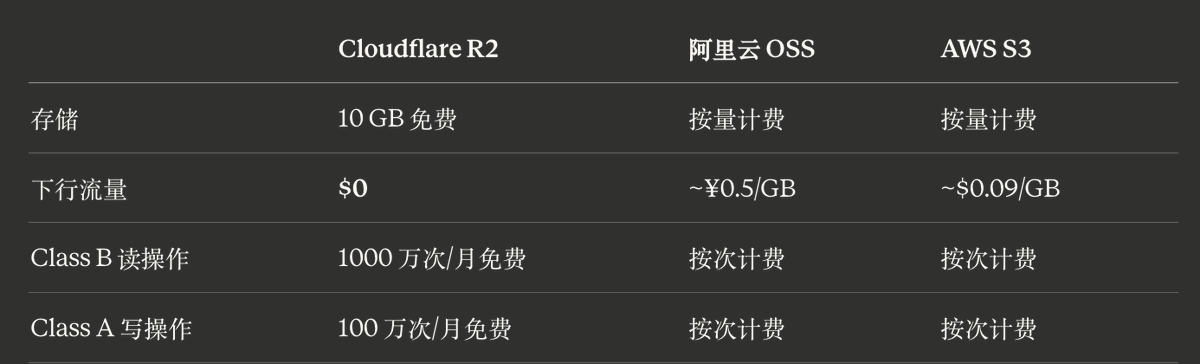
個人ブログや画像付きノートなど、同規模の用途であれば、R2の無料枠を使い切ることは基本的に不可能です。
2. Cloudflare R2の設定#
2.1 バケット作成 + APIトークン生成
Cloudflareダッシュボードにログインし、左側のR2オブジェクトストレージに移動し、バケットを作成をクリックします。

バケット名は簡潔で意味のあるもの(例:
img や blog-images)にすることをお勧めします。
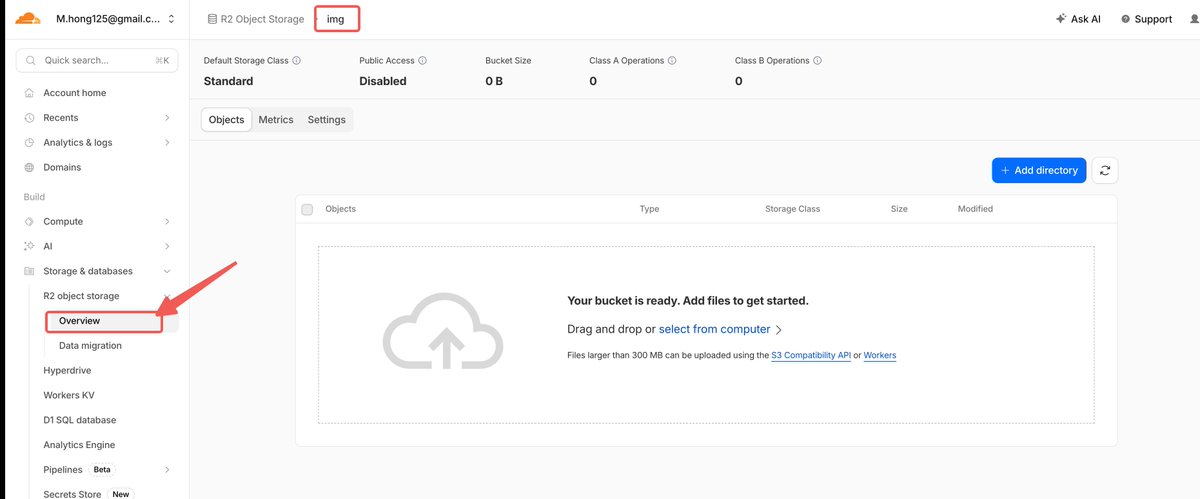
作成後、R2概要ページ → R2 APIトークンの管理 → APIトークンを作成に移動します。オブジェクトの読み取り&書き込み権限を選択し、スコープを先ほど作成したバケットに限定することもできます。


作成が成功すると、3つの重要な値が表示されます。必ず保存してください:
- アクセスキーID
- シークレットアクセスキー
- エンドポイントURL(形式は
https://<account_id>.r2.cloudflarestorage.comに類似)
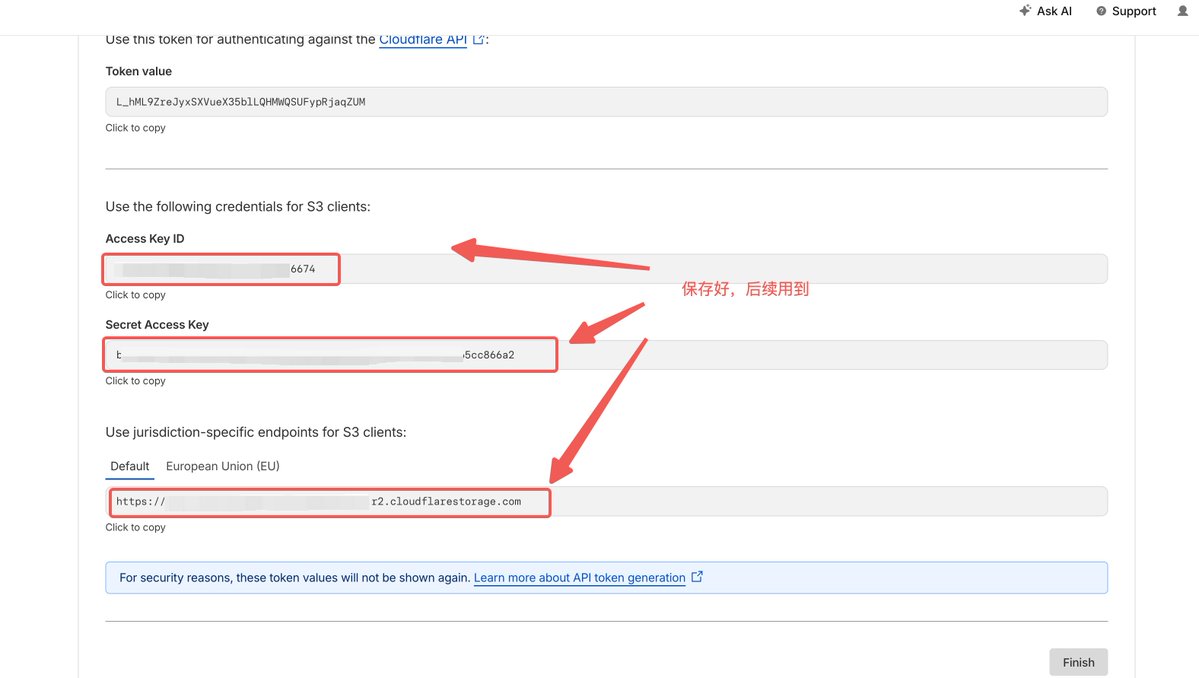
⚠️ シークレットアクセスキーは一度しか表示されません。ウィンドウを閉じると二度と見られなくなります。すぐに保存することをお勧めします。
2.2 カスタムドメインのバインドとWAF保護
もしあなたのドメインがすでにCloudflareで管理されている(またはCNAME経由でアクセスされている)場合、カスタムドメインのバインドは非常に簡単です:バケット → 設定 → カスタムドメイン → ドメインを接続に移動し、使用したいサブドメイン(例:
img.yourdomain.com)を入力します。Cloudflareが自動的にDNSレコードを追加し、SSL証明書を発行します。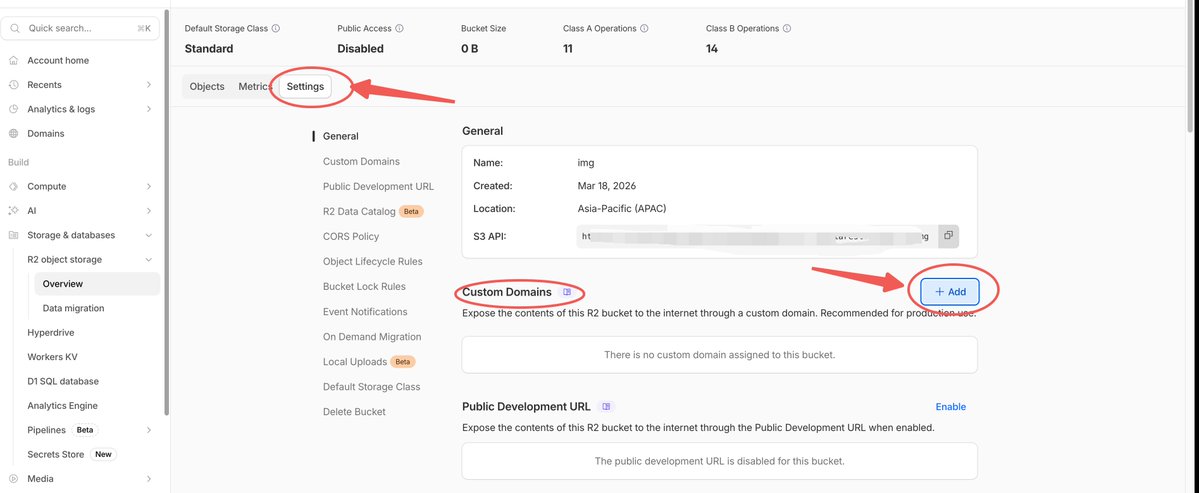
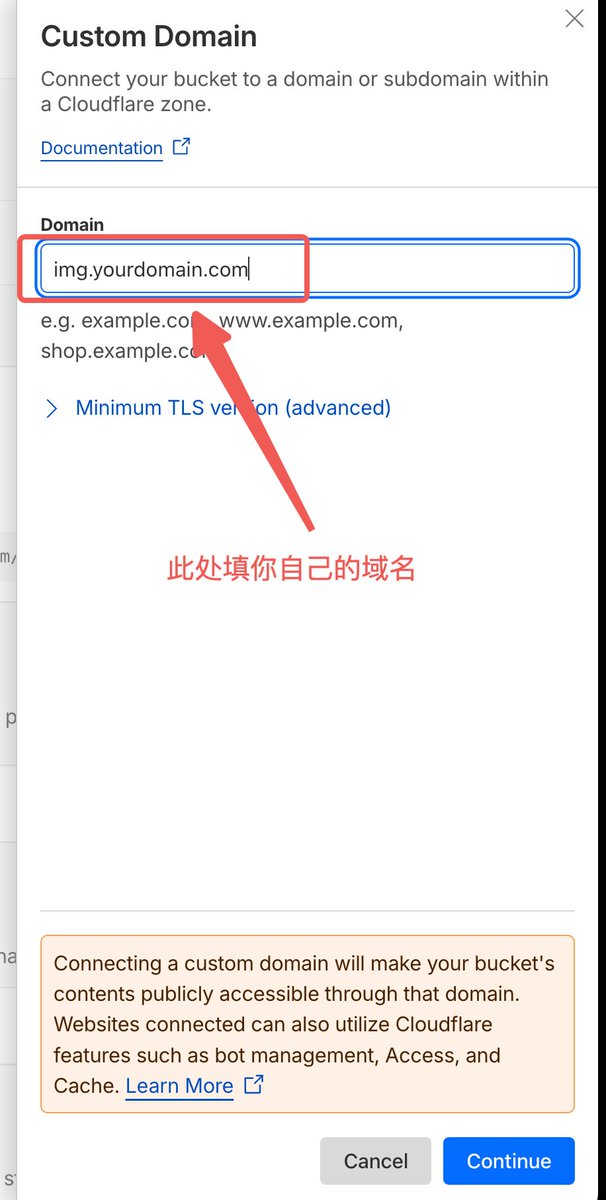
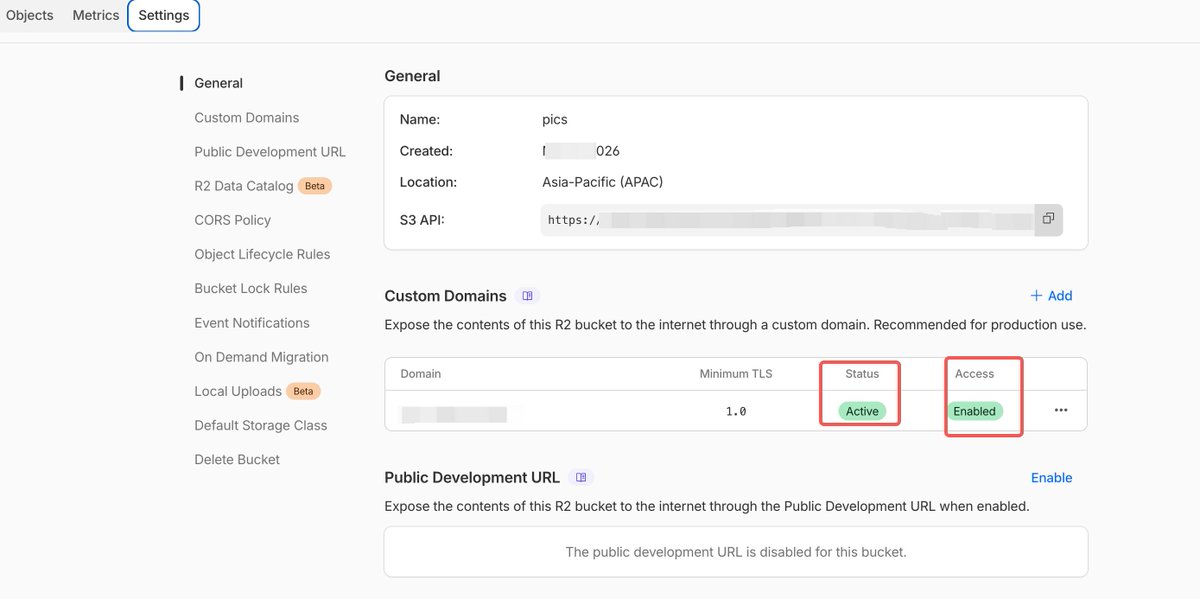
バインドが完了したら、ブラウザで
https://img.yourdomain.com にアクセスして動作を確認します。(オプション、使用には影響しません)悪意のある高頻度リクエストで操作クォータを使い果たさないように、WAF保護を設定することをお勧めします。ドメインのセキュリティ → WAFに移動し、レート制限ルールを追加します:例:同じIPが1分間に100回以上のリクエストを行った場合にブロック。また、Referer検証ルールを追加して、自分のドメインからの画像参照のみを許可することもできます。
3. PicListクライアントの設定#
3.1 R2への接続
PicList GitHubリリース から最新バージョンをダウンロードしてインストールします。
PicListを開き、画像ホスティング設定に移動し、Amazon S3(R2はS3プロトコルと互換性あり)を選択します。以下の情報を入力します:
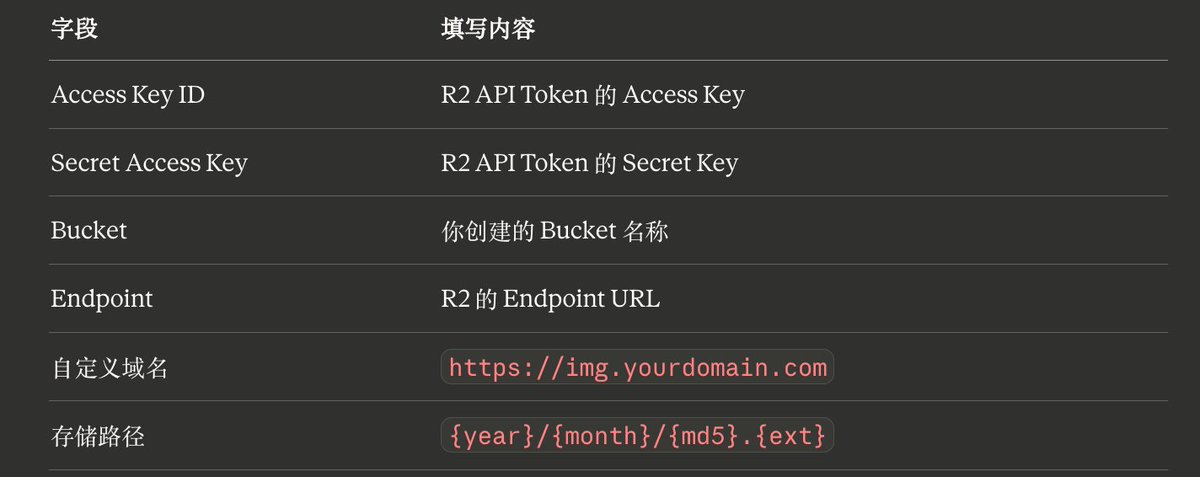

保存パステンプレートには
{year}/{month} を使用して月ごとにアーカイブし、ファイル名には {md5} を使用して重複を避けます。これで整理整頓が保たれます。入力後、確認をクリックし、デフォルトの画像ホスティングとして設定します。任意の画像をアップロードしてテストします。リンクが取得できれば設定成功です。
3.2 WebP自動変換とアルバム管理
PicListにはアップロード前のフォーマット変換機能が組み込まれています。PicList設定 → アップロード処理 → 画像前処理設定 → 画像フォーマット選択 → ターゲットWebPに移動します。これを有効にすると、すべての画像はアップロード前に自動的にWebPフォーマットに変換されます。実際には、500KBのPNGスクリーンショットは通常、変換後100〜150KB程度に縮小され、約70%削減されます。
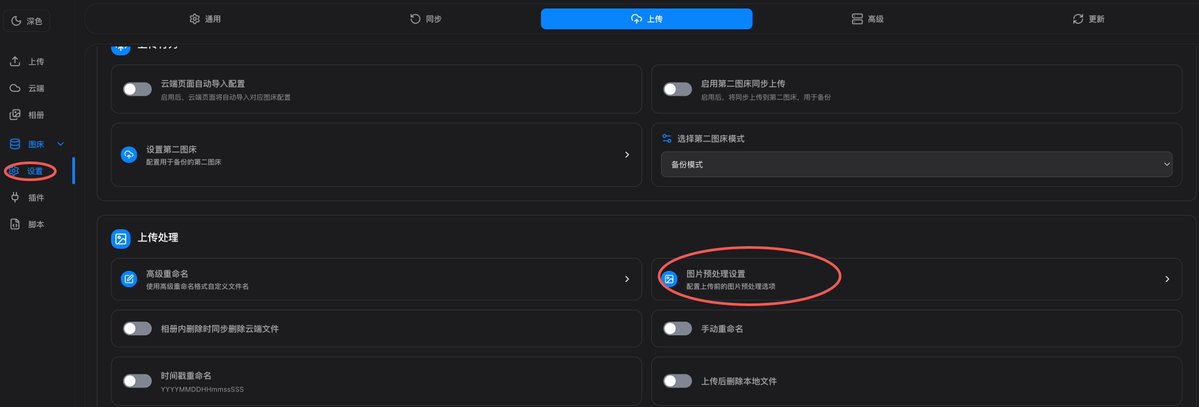

🔥PicListには多くの設定があります。すべては列挙しません。自分で探ってみてください。🚀
【ハイライト機能】PicListのアルバム機能は、R2バケットから直接ファイルリストを読み取り、クラウド画像マネージャーとして機能します。一括削除、検索、およびMarkdown / HTML / URL形式のリンクのワンクリックコピーをサポートしており、Cloudflareダッシュボードにログインするよりも管理がはるかに便利です。

4. Obsidianとの連携#
もしノートやブログにObsidianを使用しているなら、画像貼り付け時の自動アップロードを実現できます。
コミュニティプラグインImage Auto Upload(by renmu123)をインストールします。プラグイン設定で、アップロード方法をPicListに設定し、PicListクライアントがバックグラウンドで実行されていることを確認します。設定後、Obsidianでスクリーンショットを直接貼り付けると、プラグインが自動的にPicListを呼び出してR2にアップロードし、リモートリンクに置き換えるため、執筆プロセスが完全にシームレスになります。
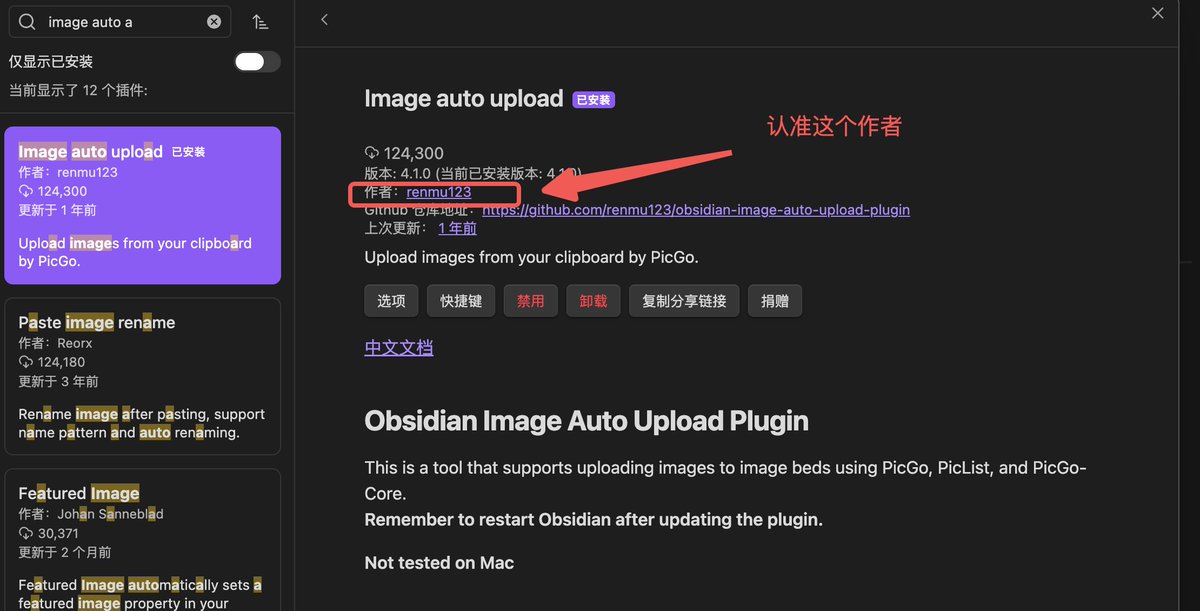
🚀オンラインには多くのチュートリアルがあります。以下のものを参考にしてください🔥
引用ツイート https://t.co/lvvO3dO6eh https://x.com/i/web/status/2029762985628160110
5. よくある質問(FAQ)#
R2はいつ課金されますか?
ストレージが10GBを超えた場合、クラスA書き込み操作が月間100万回を超えた場合、またはクラスB読み取り操作が月間1000万回を超えた場合にのみ課金が開始されます。個人の画像ホスティングシナリオでは、これらの制限に達することは非常に困難です。超過時の価格も非常に低く設定されています:ストレージ $0.015/GB/月、操作 $4.50/100万回(クラスA)。
画像アクセス時の403エラーのトラブルシューティング方法は?
最も一般的な理由は、バケットがパブリックアクセスを有効にしていないか、カスタムドメインが正しくバインドされていないことです。バケット設定に移動してカスタムドメインのステータスがアクティブであることを確認するか、パブリックアクセス許可が有効になっているか確認してください。
ドメインがCloudflareで管理されていない場合でも使用できますか?
はい、ただし少し面倒です。元のDNSプロバイダーで、R2が提供するドメインを指すCNAMEレコードを追加する必要があります。ただし、ドメイン自体がすでにCloudflareで管理されている場合は、プロセス全体がはるかにスムーズです。
PicListとPicGo、どちらを選ぶべきですか?
PicListはPicGoの機能強化フォークであり、PicGoプラグインエコシステムと完全に互換性があります。R2画像ホスティングシナリオでは、違いがかなり顕著です:

簡単に言えば、R2でPicGoを使用するにはプラグインのインストールとパラメータの設定が必要ですが、PicListはそのまま使えます。新規ユーザーの場合は、シンプルさを求めてPicListを選んでください。
6. まとめ#
Cloudflare R2 + PicListは、現在の個人画像ホスティングにおける最適なソリューションの一つです:トラフィック料金ゼロ、グローバルCDN加速、ネイティブクライアントサポート、自動WebP変換。一度設定すれば、基本的に二度と心配する必要はありません。
後でもっと弄りたい場合は、Cloudflare Workersを探索してリアルタイム画像処理(切り抜き、リサイズ)を行ったり、CloudflareのImage Resizing機能を有効にしてオンデマンドで異なるサイズを生成することもできます。
質問があれば、コメントで自由に議論してください。
役に立ったと思ったら、フォロー、ブックマーク、シェアをお願いします!
スレッド#
🙂#
https://x.com/Lonely__MH/status/2034258027646456124
テキストやメディアはありません。